

When a Dell laptop won’t turn on, Dell’s own no-power guides keep coming back to three things: the charger, the lights on the case, and a drain-and-reset using the power button. I run them in that order on every dead Dell, and I leave the board for last.
First, work out whether the laptop is dead or only dark. Press the power button and see whether its light glows steadily, then press Caps Lock. Dell’s power guide says that if neither light responds, you have a no-power problem. If the lights come on, the laptop has power and the screen is the suspect, so go to the Dell laptop black screen guide for the display tests. Everything below is for a Dell that doesn’t react, or one that blinks and never starts.
Dell laptop won’t turn on even when plugged in: the charger checks
When a Dell stays dead on the charger, test the supply before you blame the laptop. Dell’s no-power articles work outward from the laptop: outlet, power strip, adapter, adapter light, then the port.
- The outlet. Plug a lamp into it. Then plug the Dell’s adapter straight into the wall, without the power strip or surge protector, because Dell says to bypass those.
- The light on the adapter. If your adapter has an LED, it should be lit. Dell says to reseat the cable at both ends, and to replace the adapter if the LED stays off.
- Damage. Look along the cable, at both connectors and into the laptop’s power port. Dell says that if you see fraying or a damaged port, stop using the adapter and contact support.
- A known-good adapter. Borrow one that Dell supplied or approved for your model, with the wattage printed in your manual. I do this before anything else, even when the owner swears the charger works, because it’s the cheapest part to be wrong about.
- The dock. If the laptop sits on a dock, plug the adapter directly into the laptop. Dell notes that a dock may not supply enough power, and a fully drained battery can keep a laptop from starting on a dock.
Dell laptops also check what’s plugged into them, and a wrong or worn adapter can show up as a warning. In Dell’s article on an unrecognized adapter, the startup screen or BIOS reads “The AC power adapter wattage and type cannot be determined,” and the BIOS lists the AC adapter as Unknown. Dell says the battery may then refuse to charge and the laptop may slow down, and it puts the cause on the adapter, the DC-in port or the board’s charging circuit.
If you can reach the BIOS, tap F2 at startup and open the Overview page. Dell says systems made before 2021 list the adapter under General, then Battery Information. Dell’s article says an adapter shown as Unknown or at the wrong wattage points to an incompatible charger, a faulty charger or a port problem. If a Dell-approved adapter of the right wattage still reads Unknown, the port or the board is next, and that’s a shop job.
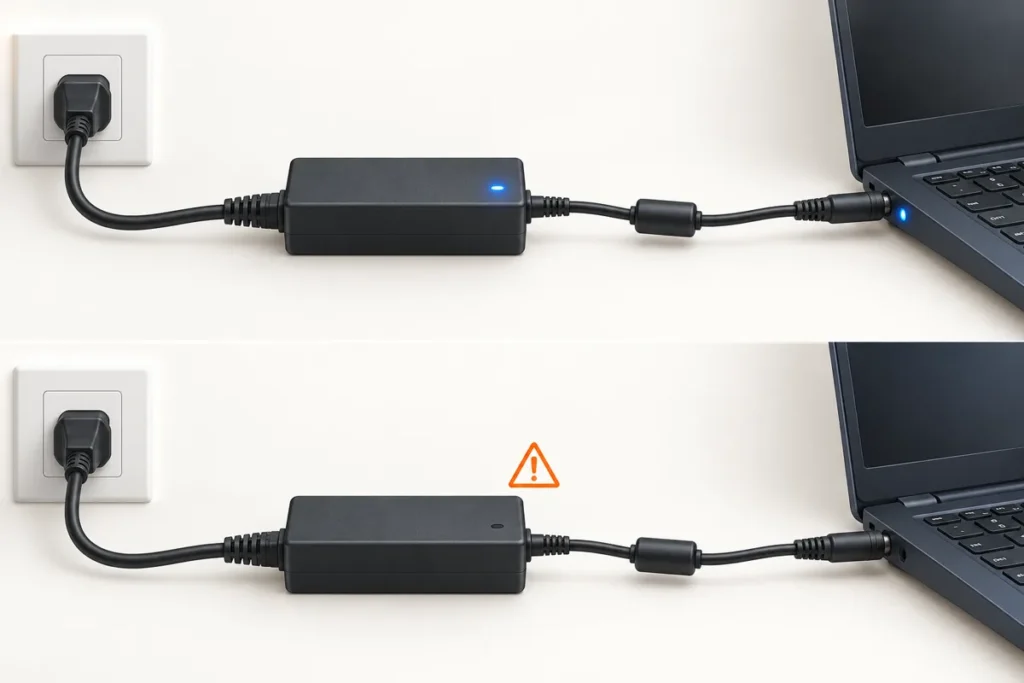
What the battery light says when a Dell won’t start
On the Latitude, Inspiron and XPS lines Dell documents, the battery light doubles as a diagnostic light. Steady and amber patterns report power state. Counted amber and white blinks report how far startup got. The same pattern can mean different things on different lines, so read the table for yours.
Take the power-state patterns first. Dell’s Latitude table lists three that involve the adapter or battery:
- Amber and white, alternating: an unsupported or non-Dell adapter is attached. Disconnect and reconnect it, then try a known-good adapter.
- Amber alternating with steady white: a temporary battery failure with the adapter present.
- Constant blinking amber: a fatal battery failure with the adapter present.
For both battery failures, Dell’s Latitude steps are the same. Turn the laptop off, unplug the adapter and reseat the battery if it’s removable. Then try a known-good battery from a similar Dell. Dell’s Inspiron table lists the first pattern too, as an unsupported non-Dell adapter or battery. Its constant flashing amber means a battery below the low level, where the Latitude table reads the same light as a fatal battery failure. On XPS laptops from 2014 to 2025, Dell lists solid amber for a low to critically low battery.
Counted blinks are the second kind. You count the amber blinks, wait through a short pause, then count the white ones, and the pattern repeats until you shut the laptop down. Write both numbers down before you do anything else. (2,3) means two amber and three white. Dell’s own pages say these lights show how far startup got, not the exact part that failed. Its Inspiron and XPS guides add that a diagnostic code takes over the light, so you won’t see battery status while one is showing.
Dell’s Latitude, Inspiron and XPS tables share this set, and none of it is a display fault:
- 2,1 is a possible CPU failure.
- 2,2 is a motherboard BIOS or ROM failure.
- 2,3, 2,4 and 2,5 mean no memory detected, a memory failure and invalid memory. Dell’s Inspiron and XPS tables say to confirm the memory is installed for 2,3, and to reseat it for 2,4 and 2,5.
- 2,6 is a motherboard or chipset error.
- 3,1 is a CMOS battery failure.
- 3,3 and 3,4 mean the BIOS recovery image wasn’t found, or was found but isn’t valid.
The three tables part ways after that. The Latitude table I read stops at 3,4. Dell’s Inspiron 2020 to 2025 table adds 1,1 for a Trusted Platform Module failure and 1,2 for unrecoverable SPI flash, both found by the built-in motherboard test. It also lists 1,5 for an I-Fuse failure, 3,5 for a power rail failure, 3,6 for corrupted BIOS flash, 3,7 for a Management Engine error, and 4,1 and 4,2 for memory and CPU power faults. XPS laptops from 2014 to 2025 run from 2,1 to 3,7 and have no 1,x or 4,x rows.
One Inspiron code has a free fix that Dell spells out. For 1,6, an internal controller failure, Dell’s Inspiron guide says to disconnect all power sources, drain the flea power by holding the power button, and call support if the code comes back. That’s the same drain described in the next section.
Older machines don’t follow any of this. Dell’s guides say Inspirons from 2006 to 2016 and XPS laptops from 2008 to 2014 use their lights only for battery and drive status, and send you to a beep code table for diagnostics. The older Latitude models use the storage, battery and wireless lights in combinations. The display-related counts, such as 2,7 and 3,2, are covered in the blink-code section of the Dell black screen guide.
Hard reset and RTC reset: same button, different holds
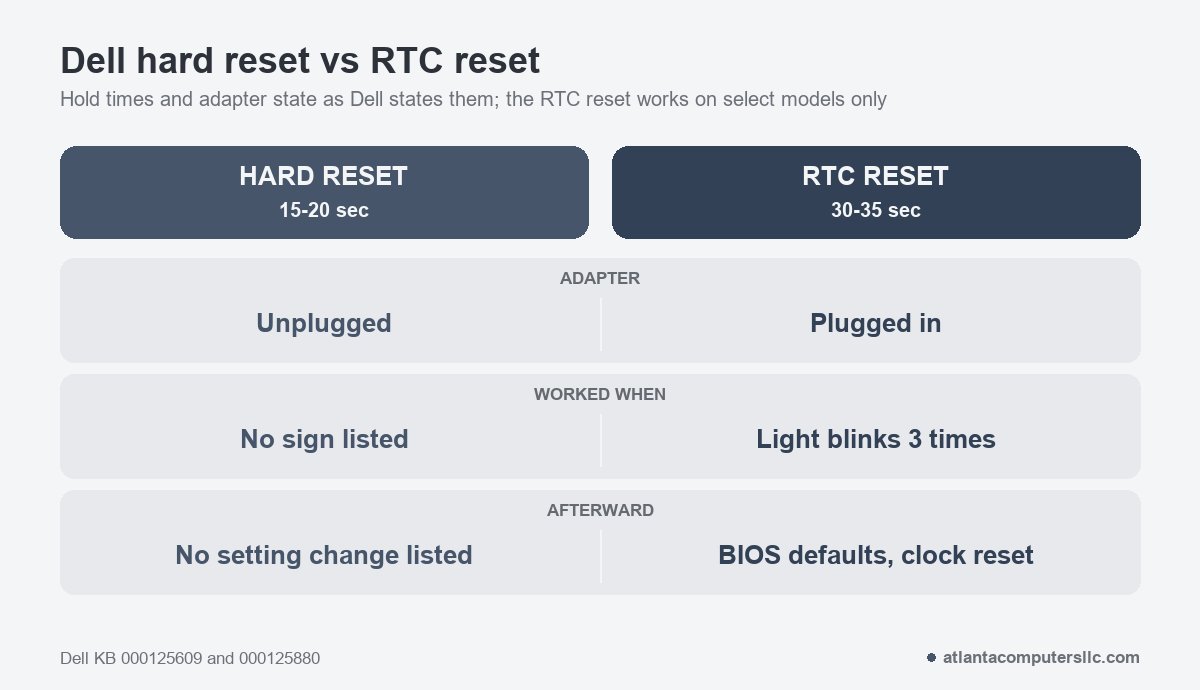
Dell describes two resets that use the same power button and need opposite adapter states. A hard reset drains static with the adapter unplugged and the button held 15 to 20 seconds. An RTC reset holds the button 30 to 35 seconds with the adapter connected, until the power light blinks three times.
Start with the hard reset, which works on any model.
- Turn the laptop off and unplug the adapter, the dock and every USB device.
- Remove the battery if it’s removable. Some thin Dells seal it in. If yours does, your manual will say so, and you skip this step.
- Hold the power button for 15 to 20 seconds. Dell says this discharges static electricity.
- Reconnect the battery, then the adapter, and press the power button.
- If it still won’t start, take the battery out again and try the adapter alone, as Dell’s no-power steps suggest.
The second reset is the RTC reset, short for real-time clock. Dell’s article describes it as a recovery from a no-power, no-POST or no-video state. The steps are short and the timing is strict.
- Turn the laptop off and connect the adapter.
- Press and hold the power button for about 30 to 35 seconds, until the power light blinks three times.
- Release the button. The reset is finished once you let go.
If you release before 25 seconds, hold past 40 seconds, or lose the adapter during the hold, Dell says the reset is aborted and you start over. The laptop may restart several times afterward and show the Dell logo.
It’s easy to blur the two holds. One r/Dell commenter, answering a post about a Dell that wouldn’t start, wrote this:
“Which Dell Laptop Model is it? Would like to know, also I personally would try holding the power button for longer at-least 30 seconds to see if it POST/power on sequence with and without a charger.”
– r/Dell (1 upvote)
A 30-second hold “with and without a charger” covers both adapter states at once. Dell ties each hold to one state: 15 to 20 seconds with the adapter out for the hard reset, and 30 to 35 with it in for the RTC reset. Use Dell’s numbers. The RTC reset is the one that changes settings, so know what it does before you run it.
Dell’s RTC reset article limits it to select Alienware, Inspiron, Latitude, Precision, Vostro and XPS laptops. It also says that every Intel-based Dell with an 8th generation (2017) processor supports it, and that 9th generation (2018) and newer models add a reset of the motherboard’s internal power circuits. An older model outside Dell’s list may do nothing. Since June 2025, Dell says, a BIOS administrator password can disable the manual reset on a model that supports it.
The reset puts the BIOS back to its defaults and resets the date and time. Dell lists the service tag, asset tag and passwords as untouched. The laptop may then fail to start Windows until you press F2 and restore settings such as the SATA operation mode, which Dell says may need to go back to RAID On or AHCI. A laptop that boots badly after the reset hasn’t failed the reset. If you can still reach the BIOS before you try it, photograph the settings screens first.
Dell’s built-in tests: M-BIST and ePSA
Dell’s built-in tests run when Windows can’t. M-BIST checks the system board with only the M key and the power button, and ePSA runs a hardware check from Fn plus power or F12. Which one applies depends on how much of the laptop answers.
M-BIST is the test for a laptop that does nothing. Hold the M key, press the power button, and watch the battery light. Dell’s no-power guide says an amber battery light means the test found a system board error and you should contact Dell. A light that stays off means it found no board fault. Dell’s newer laptop power article adds that a passing laptop cycles its screen through solid colors for 30 seconds, and that a failing one shows amber and white or flashes an error code for 30 seconds.
Dell says M-BIST came in with the Latitude XX90 series and appears on supported laptops only. A silent result on an older Dell proves nothing either way.
ePSA needs more from the laptop. If it shows any life, hold Fn and press the power button, which Dell’s no-POST steps give for laptops. Or restart and tap F12 at the Dell logo, then choose Diagnostics. Dell’s pages disagree on which key starts it, so try F12 first, Fn plus power second, and defer to your manual. When a test fails, write down the error code, the validation code and the service tag. Dell asks for all three.
Latitude owners get a third route. Dell’s forced ePSA article describes a recovery for select Latitude laptops that power up but stall in startup: unplug the adapter, remove the battery, hold the power button 10 to 20 seconds, then hold the button again while plugging the adapter in. Dell says not to use it on a laptop with no sign of power, and that an older Latitude may show nothing at all because it lacks the feature, which doesn’t mean it’s broken.
Heat, a swollen battery and a recent part swap
Some Dells die without a power-path fault. Dell’s power article lists overheating, a swollen battery, physical or liquid damage, a dead CMOS battery and a recently installed part as causes. One thread in r/Dell opens with the first of those cases, a laptop that quit mid-use:
“So I was using it and randomly shutdown, since then I’ve been trying to turn on but it doesn’t work, how can I fix it?”
– r/Dell, September 2026 (5 upvotes)
A shutdown on a soft surface, or with clogged vents, points to heat. Dell says laptops have safety circuits that cut power when the CPU or other parts overheat, and that soft surfaces like pillows and sofas, which cover the vents, are a common cause. Unplug the adapter and look at the vents for dust. Dell’s advice is compressed air, used as the can’s label says, and never a vacuum, a blower or your mouth, because those can add static or moisture.
Dell’s other causes sort out quickly:
- A recent upgrade. If the laptop died right after new RAM or a new drive went in, Dell says the part may be faulty or badly seated, and the first step is to reinstall it using the manual for your model. Before I open any Dell, I shut it down, pull the adapter and take the battery out where it’s removable.
- A drop or a spill. Broken plastics, cracks or a deformed case can stop a laptop from powering on, and Dell notes the repair is on you unless you carry an accidental damage policy.
- A dead CMOS battery. Dell says a dead CMOS battery can keep a laptop from powering on. A 3,1 blink code points straight at it, and Dell says most people have a technician replace it.
A swollen battery is a hard stop. Dell lists the signs: the touchpad or keyboard lifting, the laptop rocking on a flat surface, and case seams that have gone uneven. If you see any of them, don’t charge it, don’t press on it and don’t open the case. Take it to a battery recycler or a repair shop.
Where I stop and take a Dell to a shop
I stop when the free checks are used up or when a light points at a part I can’t reach without a soldering iron. These are the lines:
- The laptop does nothing after a proven adapter, a hard reset and, on a supported model, an RTC reset.
- M-BIST turns the battery light amber or flashes an error code.
- A blink code names the CPU, the BIOS, the board or chipset, a power rail, or a failed BIOS recovery: 2,1, 2,2, 2,6, 3,3 and 3,4, plus 3,5 to 3,7 on the XPS and Inspiron tables that list them, and 1,1, 1,2 and 1,5 on the newer Inspirons.
- The BIOS reports an Unknown adapter with a Dell-approved one plugged in.
- The power port is loose, bent or burned, or the adapter cable is frayed.
- The laptop took a drop or a spill before it died.
- The case bulges, the touchpad lifts or the seams have split. That’s a swollen battery.
I don’t do board-level repair, and a clicking drive goes to a data recovery lab, not to me. If the files matter more than the laptop, say so before anyone resets or reinstalls anything. I back up or image the drive before any repair that touches it.
When you call Dell or a shop, bring the blink count, what the adapter light does, which resets you ran, the M-BIST result if you got one, and the service tag.
Dell laptop won’t turn on questions
How do I force a Dell laptop to turn on?
Dell’s documentation lists no force-on key. The closest equivalents are a hard reset with the adapter unplugged and a 15 to 20 second hold, and an RTC reset with the adapter plugged in and a 30 to 35 second hold, on models that support it.
Dell laptop won’t turn on but the charger light is on: what next?
A lit adapter light only shows the adapter has power. Check the laptop’s own battery light for a blink count, then run the hard reset, the RTC reset and M-BIST, in that order, before suspecting the board.
What does an orange or amber light mean on a Dell laptop?
It depends on the line and on whether it blinks. Alternating amber and white flags an unsupported adapter on Latitude and Inspiron, constant blinking amber is a fatal battery failure on Latitude but a low battery on Inspiron, and counted blinks are codes.
