
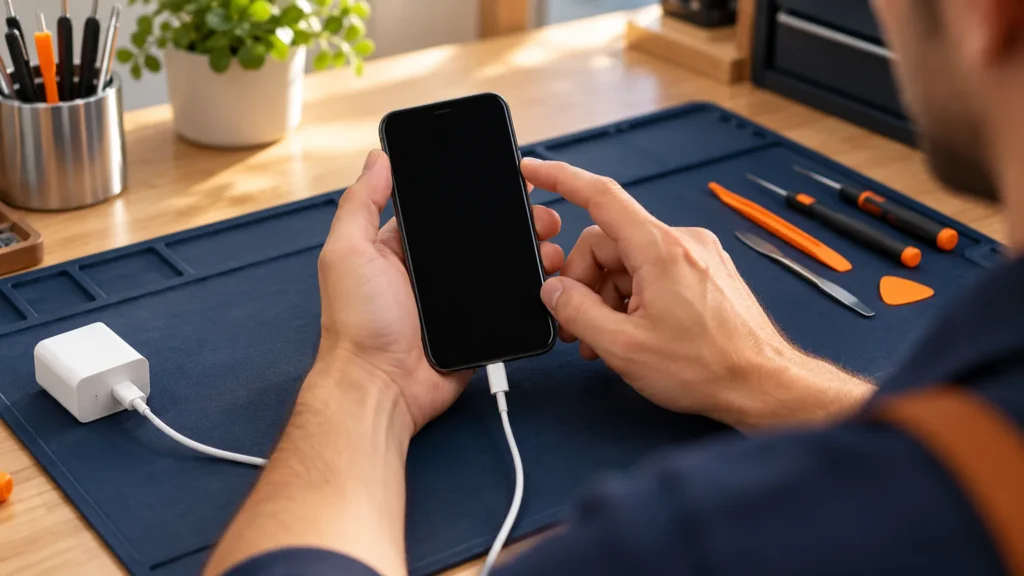
When an iPhone won’t turn on, Apple’s pages give three escalating moves: charge it, force restart it, and connect it to a computer in recovery mode. What the screen shows between steps decides which move you need, and a phone that stays silent through all three needs service.
A phone that rings, buzzes or chimes while the display stays dark is running, so that fault is covered in the iPhone black screen guide. A phone that stays silent, sticks on a logo or shows a computer screen is the case that follows.
iPhone won’t turn on: what the screen shows decides the fix
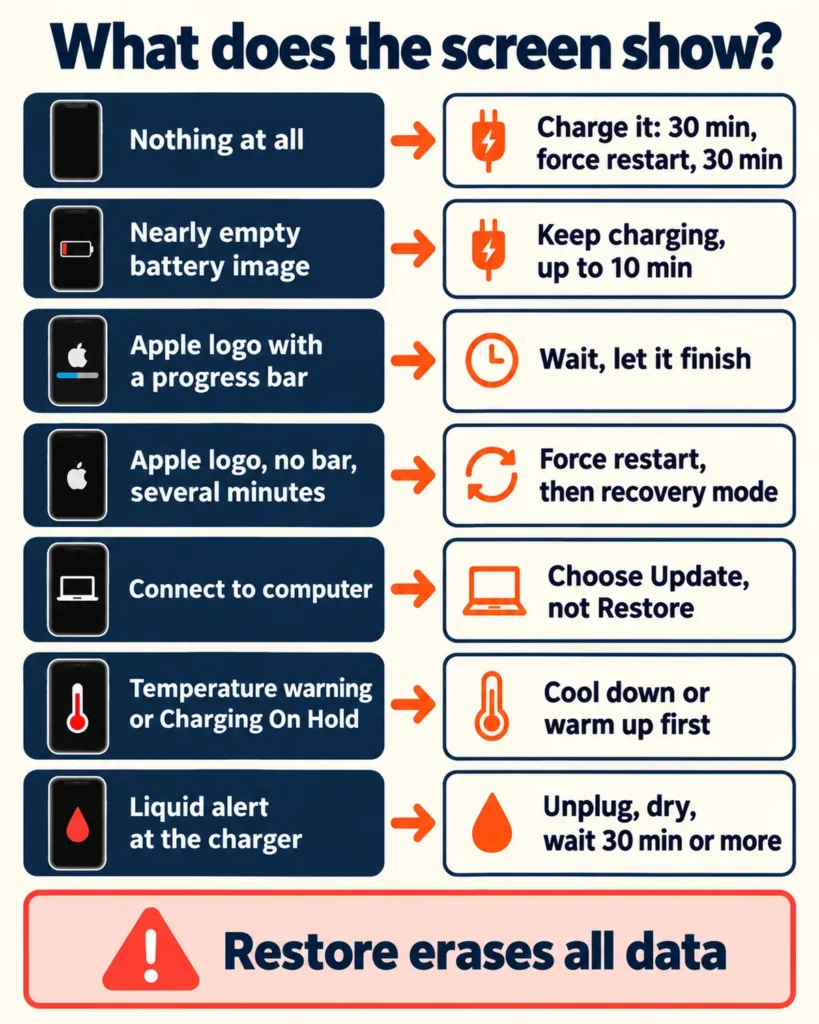
The next move depends on what the phone shows: a blank screen means charge it, a logo means wait or force restart, a computer screen means pick Update, and a warning means fix the temperature or dry the port.
- Nothing at all. Treat the phone as flat and work through the charging steps. A very low phone can stay blank for up to 2 minutes after you plug it in.
- A nearly empty battery image. Apple says the phone needs up to 10 minutes of charging before you can use it. Leave it connected.
- The Apple logo with a progress bar. An update or restore is running. Apple says to let it finish.
- The Apple logo with no bar for several minutes. Force restart the phone, then try recovery mode if it sticks.
- The “Connect to computer” screen. Recovery mode is on. Pick Update on the computer.
- A temperature warning or “Charging On Hold”. The phone is too hot or too cold. Move it somewhere that suits it.
- A liquid alert when you plug in. Unplug the cable and let the connector dry.
Charging a phone that shows nothing: the timing ladder
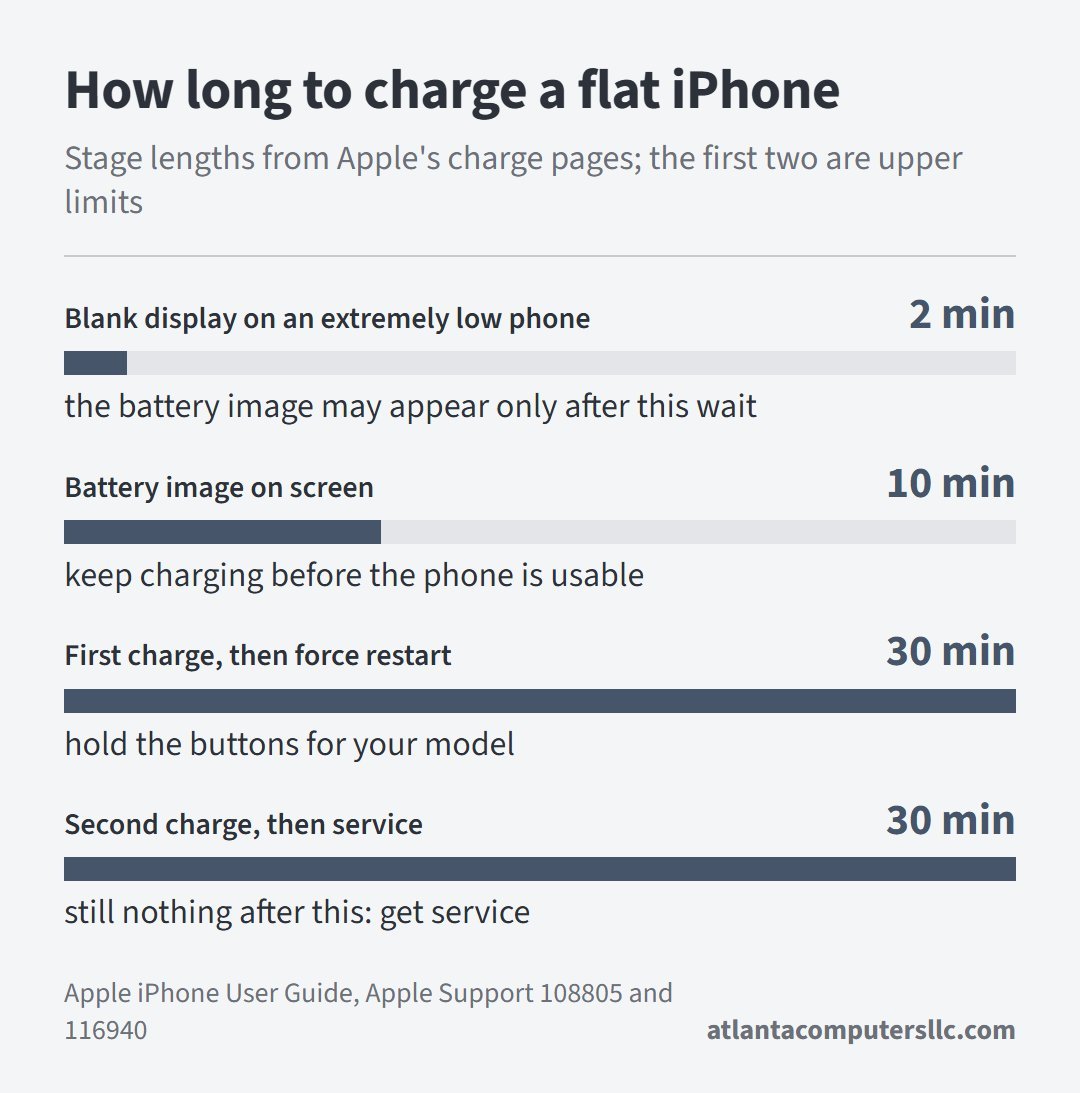
Apple’s charge page sets the order: half an hour on the charger, a force restart, another half hour, then service. Wait out each stage before moving to the next one.
Start with the plug. Apple lists a wall outlet, a power accessory or a computer as power sources, and the iPhone User Guide adds that a computer that is switched off can drain the battery instead of charging it. Use a wall outlet if you have a choice.
Then wait longer than feels reasonable. According to the iPhone User Guide, an iPhone that is extremely low on power can show a blank display for up to 2 minutes before a nearly depleted battery image appears, and that image means it needs up to 10 minutes of charging before you can use it. Apple’s page for a phone that won’t turn on gives one hour, or 30 minutes or until it starts if the low-charge battery shows.
Some phones take longer than either page suggests. One r/iphone reply describes a dead iPhone 17 Pro that came back after the owner stopped fiddling with it:
“thank you for easing my panic, this was exactly it! I forced myself to leave it alone and it eventually turned on after around 2 hours. what a ridiculous glitch!”
– r/iphone, May 2026 (9 upvotes)
The thread blames a charging glitch on iPhone 17 models. Apple’s pages name no such glitch, so read that as the poster’s guess. One report of about 2 hours is not an Apple figure, and it only shows that a flat phone can take longer than the first half hour.
If the wall charger gets no response, try a second way in. Apple’s guide lists a MagSafe or Qi-certified wireless charger as another method, and another reply in the same thread suggests starting there: a phone that wakes up on a wireless charger points at the charging port instead of the phone.
Check the cable and adapter for breaks or bent prongs, try a different outlet, and clear any debris from the charging port on the bottom of the phone, as Apple’s charge page describes. On a laptop I swap the charger and try another outlet before I blame the machine. A second cable and a second charging method rule out the cheap suspects here in the same way.
If the phone does wake up but stops charging again, the iPhone won’t charge guide covers the cable, port and charger checks in full.
Force restart: the buttons for your model
A force restart reboots a frozen phone, and the buttons depend on the model. Keep holding them past the point where it feels like nothing is happening, until the Apple logo appears. Apple’s support page for an iPhone that won’t turn on gives each sequence, and its charge page uses the same groups.
- iPhone 8 or later, including iPhone SE (2nd generation and later): press and quickly release volume up, press and quickly release volume down, then hold the side button until the Apple logo appears. Expect it to take longer than 10 seconds.
- iPhone 7 or iPhone 7 Plus: hold the side button and the volume down button together until the logo appears. The wait runs past 10 seconds here too.
- iPhone 6s or earlier, including iPhone SE (1st generation): hold the Home button and the side or top button together until the logo appears. That takes around 10 seconds.
If the Apple logo appears after a force restart, let the phone finish starting and plug it in. If the logo never appears, go back to the charger for the second half hour that Apple’s charge page sets before service.
Stuck on the Apple logo or a “Connect to computer” screen
Apple lists four situations in which you might need recovery mode: the Apple logo for several minutes with no progress bar, a computer that doesn’t recognize the phone or says it is in recovery mode, the “Connect to computer” screen, and a Recovery Assistant loop that can’t fix the phone.
A progress bar changes the advice. After an update, a restore or an erase, Apple says the bar can move slowly or look frozen, and that it’s important to let the phone finish. A force restart is for an update that never completes or a phone that stops responding. Without a bar, move to the computer.
Update a Mac first, or get the latest Apple Devices app on a Windows PC, then connect the phone with a USB cable and open Finder or Apple Devices. Keep the phone connected until the “Connect to computer” screen appears. On an iPhone 8 or later, the button sequence is the force restart one, with a different finish: press and release volume up, press and release volume down, then hold the side button until that screen shows, not just the logo. Apple’s recovery mode page lists the iPhone 7 and 6s sequences too.
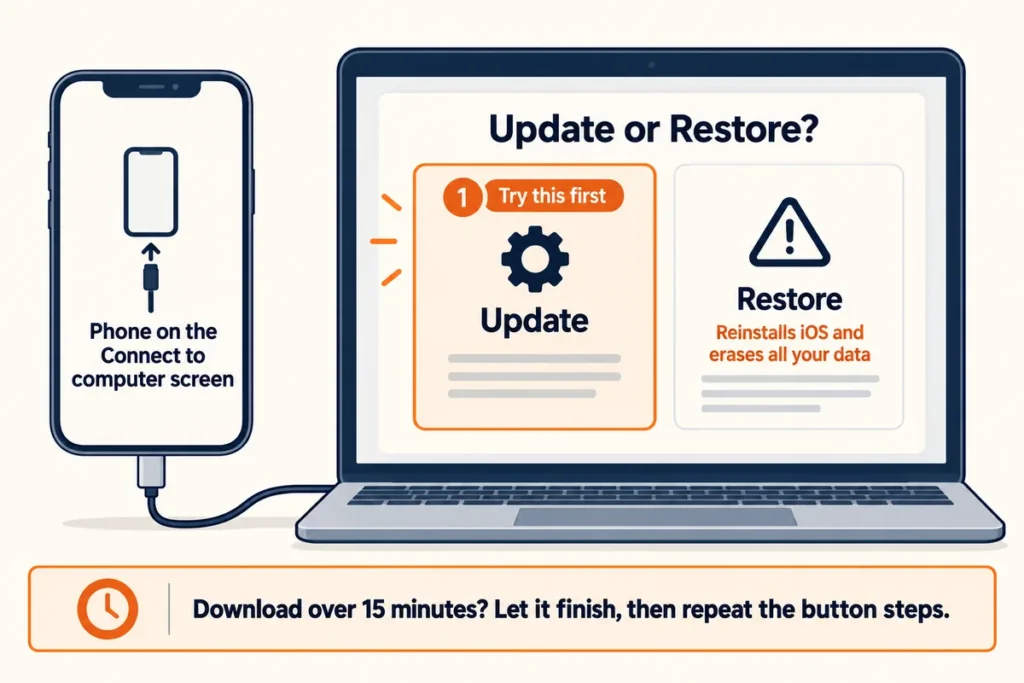
When the computer offers Update or Restore, pick Update. Apple states that Restore reinstalls iOS and erases all your data, and it says to try updating first. One r/iphone poster whose iPhone 14 Pro sat on the Apple logo after an iOS update describes how that went:
“Fortunately, choosing Update in Finder instead of Restore brought the phone back with all my data intact. Hopefully this helps someone else avoid restoring too soon.”
– r/iphone, July 2026 (0 upvotes)
That is one report and results will vary, but it follows the order Apple gives. If the download takes more than 15 minutes, Apple warns that the phone may leave the “Connect to computer” screen. Let the download finish, then repeat the button steps.
On a laptop I back up or image the drive before any repair that touches the disk. A phone that won’t start can’t be backed up, so anything missing from an earlier cloud backup is gone after a Restore.
Cold, hot or wet: when the setting is the problem
iPhones are designed for an ambient temperature between 0 and 35 degrees Celsius (32 to 95 degrees Fahrenheit), and a phone outside that range can shut itself off or refuse to charge (Apple’s temperature page). A wet connector is a separate hazard with its own rules.
A phone that got too cold or too hot
Bring a cold phone inside and give it time before you plug it in, because very cold conditions can turn it off and keep it from charging, and battery life returns to normal once it is back in warmer air (Apple’s temperature page). The page gives no waiting time. If the phone turns on but the battery falls quickly afterward, the iPhone battery draining fast page covers what to check in Settings > Battery.
Heat works the other way. If the phone shows a temperature warning screen, turn it off, move it somewhere cooler and out of direct sunlight, and let it cool. A “Charging On Hold” message on the Lock Screen means the phone is too hot or too cold to charge right now, and charging resumes on its own. Keep the phone out of parked cars, where temperatures can pass the 45 degrees Celsius storage limit (Apple’s temperature page).
A phone that got wet
Do not plug a wet phone in, because charging a wet connector can corrode its pins and cause permanent damage (Apple’s liquid-detection page). The iPhone User Guide gives the same rule for any suspected liquid in the charging port.
If the liquid alert shows on an iPhone XS or later, unplug the cable, tap the phone gently against your hand with the connector facing down, and leave it in a dry area with some airflow. Try charging again after at least 30 minutes. If the alert comes back, drying can take up to 24 hours (Apple’s liquid-detection page).
Skip heat, compressed air, cotton swabs, paper towels and rice. Each is on the do-not list in Apple’s liquid-detection page.
A phone that went into water and stays dead after drying is a different case. Stop using a phone you suspect is damaged, because liquid contact can damage the iPhone or its battery (Apple’s safety information). Liquid damage isn’t covered by the One-Year Limited Warranty, though consumer law may give you other rights, and Apple or an Apple Authorized Service Provider will inspect the phone (Apple’s liquid-damage page).
When to stop and get service
Take the phone to Apple or an Apple Authorized Service Provider when charging, a force restart and recovery mode all fail, when the battery or glass looks damaged, or when it stays dead after getting wet. Four signs settle it:
- The phone is still silent after the charging ladder, a force restart and recovery mode. Apple says you might need service at that point.
- A button doesn’t work or sticks, or recovery mode can’t update or restore the phone. Apple lists both as reasons for service.
- The glass is cracked, the back bulges or the display lifts away from the frame. A bulge can mean a swollen battery, and Apple says to stop using a phone you suspect has a damaged battery or cracked glass.
- The phone got wet and stayed dead after it dried.
On an older phone, suspect the battery’s age too. Unexpected shutdowns become more likely with a low charge, a higher chemical age or cold weather, and in extreme cases the phone turns unreliable or unusable (Apple’s iPhone battery and performance page). Apple’s battery service page says built-in iPhone batteries should be serviced by Apple or an authorized provider.
Stop charging a phone you suspect has a damaged battery, and don’t open it. Apple says an iPhone battery should only be repaired by a trained technician and that batteries should be recycled or disposed of separately from household waste. Its battery service page adds that the one-year warranty includes service for a defective battery.
FAQ: updates, erasing and the power button
iPhone won’t turn on after an update: what now?
Let it finish if the Apple logo shows a progress bar, because Apple says the bar may move slowly or look stuck. If the bar never completes or the phone stops responding, force restart it. If it still sticks on the logo, use recovery mode and choose Update.
Will a force restart or recovery mode erase photos?
Apple describes only Restore as erasing all your data, and it tells you to try Update first. Its charging and force restart pages describe no erase step.
How do you turn on an iPhone that is off?
Press and hold the side button until the Apple logo appears, according to Apple’s iPhone User Guide. If nothing happens, the guide says the battery might need charging, and the charging steps above take it from there.