

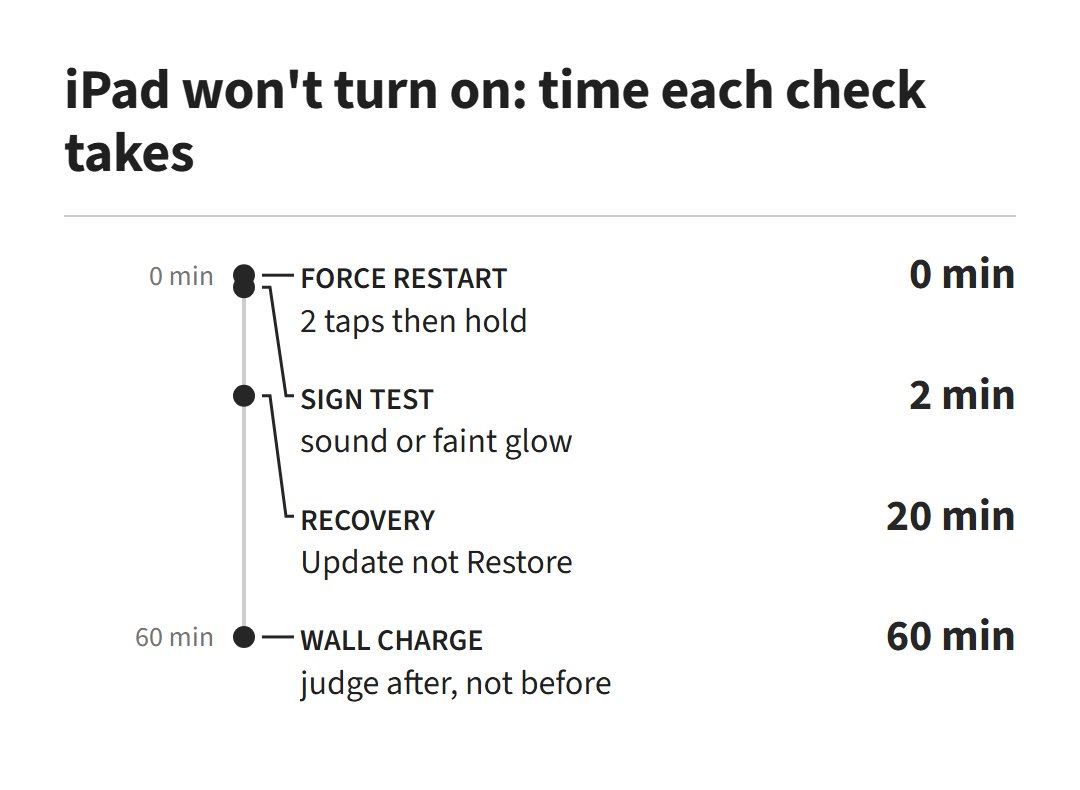
When an iPad won’t turn on, the cause is almost always one of five things: a battery drained below the point where it can show any sign of life, a break in the charging path, a frozen system, a screen that has failed while the iPad itself runs, or a board-level fault. Apple’s own page leads with two free moves, a force restart and up to an hour on a working charger, and those two moves cover the first three causes.
A truly dead iPad, an iPad that is on but shows nothing, and an iPad frozen on the Apple logo are three different problems wearing the same dark glass. Work out which one you have in the next two minutes, and the fix order writes itself. The same triage logic runs our MacBook won’t-turn-on checks and the Chromebook dead-or-dark triage; Apple just uses different buttons.
which kind of dead is your ipad
An iPad that won’t turn on falls into one of three lanes: completely silent with no light, sound or vibration; apparently dead but making noise or warmth behind a black screen; or stuck on the Apple logo or a connect-to-computer icon. The lane decides everything after it.
Run the lane test before you touch a charger or a button combination. Press the top button once and wait ten seconds. Silence, no glow, nothing: lane one. If you hear a chime when you connect the cable, feel a vibration from a switch, or hear notification sounds in the next minute, the iPad is alive and lane two applies. A logo that appears then freezes or loops is lane three, a software problem with the best odds of a free fix.
five causes, matched to what you see
The table below maps each real-world symptom to its likeliest cause and the first move that either fixes it or proves the fault is past the free stage. Start at the row that matches your iPad, not at the top of a generic checklist.
| What you observe | Likeliest cause | First move |
|---|---|---|
| Fully silent, no light or sound, was working normally | Frozen iPadOS or a crash | Force restart for your model |
| Dead after days unused or heavy use to shutdown | Deep-discharged battery | Known-good charger, up to one hour, then retry |
| No response on one cable, works on another; port feels loose | Cable, adapter or clogged port | Swap cable and adapter, inspect the port |
| Chimes, vibrates or shows a faint image under a flashlight | Screen or backlight failure | Stop power fixes; it needs a display repair |
| Logo appears, freezes or loops; or a cable-and-computer icon | Corrupted iPadOS | Recovery-mode Update from a computer |
Hardware faults sit behind every row, but they are the residual explanation, not the starting one. A battery that no longer holds charge, a charging-controller chip damaged by a bad accessory, or board damage from a drop or liquid all present identically until the free causes are cleared. That is why the order matters: each step removes a suspect without spending anything.
force restart it the way apple describes
Apple’s first move for a screen that is black or frozen is a force restart, and the button sequence depends on whether your iPad has a Home button. Neither sequence erases anything; both simply cut and restart the frozen system.
On an iPad without a Home button:
- Press and quickly release the volume button closest to the top button.
- Press and quickly release the volume button farthest from the top button.
- Press and hold the top button until the Apple logo appears.
On an iPad with a Home button, press and hold both the Home button and the top button together until the Apple logo appears.
“I’ve had that happen before. From memory, you press volume up, then volume down, then press and hold the power button. Try that.”
— r/ipad, November 2026 (2 upvotes)
Community memory gets the sequence right here; the only refinement is Apple’s own order, which releases the two volume buttons before the top button. If thirty seconds of holding produces nothing, move to the charge path rather than repeating the restart.
then clear the charge path
A deeply drained iPad can look completely dead for a long stretch before it shows anything, so the second move is to give it real power and real time: a known-good cable and adapter straight into a wall outlet, left alone for up to an hour before you judge the result.
Work the path from the wall inward. Use the adapter that came with the iPad where you can, or another adapter and cable you have watched charge something else. A computer USB port is a weak second choice; Apple’s charging page allows it only when the computer is awake, and a small low-wattage phone brick can struggle to wake a fully drained tablet battery. Then look into the port with a flashlight: lint and pocket debris pack down into USB-C and Lightning ports until the plug stops seating, and a non-metal pick, like a wooden toothpick, clears it without shorting the pins. This is also the entire fix list for a different fault, an iPad that runs fine but will not take a charge; that problem has its own page.
“Keep it on the charger. Fully dead batteries can take longer to charge so I’d leave it for a few hours and check back.”
— r/iPadPro (1 upvote)
That patience is the point most owners miss. Apple allows up to an hour of charging before the device is judged; community owners stretch it further, and both beat the common failure of unplugging after five quiet minutes and declaring the iPad dead.
it makes noise but the screen stays black
If the iPad chimes, vibrates, plays notification sounds or feels warm on the back while the screen stays dark, the power system is working and the fault has moved to the display. The flashlight test settles it in a dim room: shine a bright light at an angle across the screen while you press the top button, and a faint lock screen or Apple logo in the beam means the iPad is running on a dead backlight or a failed display.
That result flips the advice, because every power-path step is now wasted effort. A blown backlight circuit or a failed display cable is a repair-bench job: on iPads that still use LCD panels it may be a backlight fault, while newer OLED iPad Pros have no separate backlight and need a display assembly instead. Either way it is a parts repair, and chasing it with more charging cycles only burns time.
stuck on the apple logo or a computer icon
An iPad that reaches the Apple logo and freezes, loops, or shows a screen with a cable pointing at a computer has a corrupted iPadOS installation, and Apple’s fix for it is a recovery-mode update from a Mac or PC. Choose Update when the computer offers it, not Restore: Update reinstalls iPadOS and keeps your data, while Restore wipes the device.
Connect the iPad to a computer by cable and open the Finder on a Mac, or the Apple Devices app or iTunes on a Windows PC. Then press the same force-restart sequence for your model, but keep holding the last button until the recovery-mode screen appears instead of letting go at the logo. When the computer offers Update or Restore, pick Update and let it download. A failed update or a thrown error code at this stage is a genuine stop sign: storage or board-level faults surface here, and repeated restores will not push past them.
what’s left when the free checks fail
When the charge path is clean and both restarts produce nothing, the suspects left are all parts: the battery, the charging-controller circuit, or board damage. None is findable from the outside, which is exactly what makes them the end of the free checks rather than the start.
Each one has a tell worth noting for the shop visit. A battery on the way out announces itself first with fast drain, shutdowns around a reported 20 or 30 percent, and charges that crawl — the pattern iPad owners in the repair threads describe in the weeks before a no-power event. The charging controller, a small chip on the board that governs incoming power, is the classic casualty of damaged or uncertified cables and adapters, and its failure looks identical to a dead port. Drops and liquid do their damage quietly: an iPad can work for days after either, then die when corrosion reaches the wrong trace.
That is the honest hardware picture, and it is also why the earlier sections spend so much effort on the power path: every one of these faults impersonates a dead charger right up until the charger is ruled out.
where diy ends on an ipad that won’t turn on
DIY ends where the battery, the board or the warranty begins: stop at a swollen or lifting screen, any liquid exposure history, a device still inside its coverage, or any point where the free sequence has run cleanly twice without a sign of life.
Three conditions end it outright. A screen bowing out of the frame or a sweet chemical smell means a swollen battery, and pressing, charging or prying around it risks a fire; that iPad gets powered off and carried to a professional, not opened. Any iPad with a liquid history should not be cycled on the charger to test it, because current through residue corrodes the board further with every attempt. And a dead iPad still under warranty or AppleCare goes to Apple first: owners in the threads say it plainly, a month-old device is Apple’s problem, and opening it or paying a third-party shop first can forfeit the free repair.
Before any service visit, protect the data you can still reach. If the iPad syncs or backs up over Wi-Fi, leave it on a charger overnight and let a scheduled backup run; whatever it saves is what a wiped restore cannot take from you.
ipad won’t turn on questions
How long does a completely dead iPad take to turn on? On a working wall adapter, allow up to an hour before judging it, Apple’s own figure. A battery drained to zero often shows no charging icon for the first stretch, which is why so many owners unplug too early. If an hour on a known-good cable, adapter and outlet produces nothing at all, the charge path is cleared and the fault is deeper.
How much does it cost to fix an iPad that won’t turn on? Which part failed sets the bill. A charging port or battery job sits at the low end of shop quotes, board-level work on the power or charging controller runs much higher, and display or backlight repairs land in between. Under warranty or AppleCare the answer is usually nothing, which is why coverage gets checked before tools do. Any honest shop quotes after diagnosis, so treat a firm price quoted sight-unseen as a reason to call a second shop.
What are the warning signs an iPad is dying? Owners in the repair threads describe the same pattern before a no-power event: battery percentage that falls fast or shuts down at 20 or 30 percent, charges that crawl to a few percent over hours, random freezes and shutdowns mid-use, and warmth when idle. Any of those on a still-working iPad argues for a backup now rather than troubleshooting later.
How do you turn an iPad off normally? Hold the top button with either volume button until the power-off slider appears on models without a Home button, or hold the top button alone on models that have one, then drag the slider. That is a different skill from the force restart above, which is only for an iPad that no longer responds at all.