
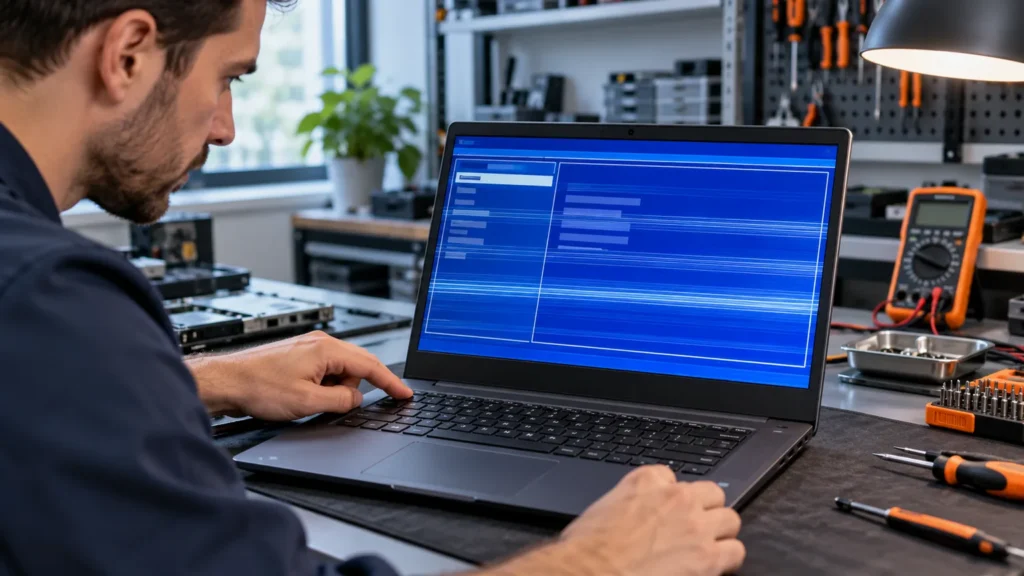
ASUS laptop screen flickering splits at the F2 key. Hold F2 while you power on. If the flicker shows on the BIOS screen too, ASUS’s internal display troubleshooting page says the screen hardware may be defective and recommends an ASUS authorized repair center. If the BIOS screen stays steady, the same page treats the flicker as software: a graphics driver, an app or a setting.
That rule has one known exception, covered below, and three ASUS blinks aren’t faults at all. Rule out the normal blinks, run the BIOS test, add a second screen, and only then start changing settings.
ASUS wasn’t the brand that crossed my bench most often, so the model-specific steps here come from ASUS’s own support pages and the comparison habit comes from Dell, HP and Lenovo laptops.
Is your flicker one of the three that ASUS calls normal?
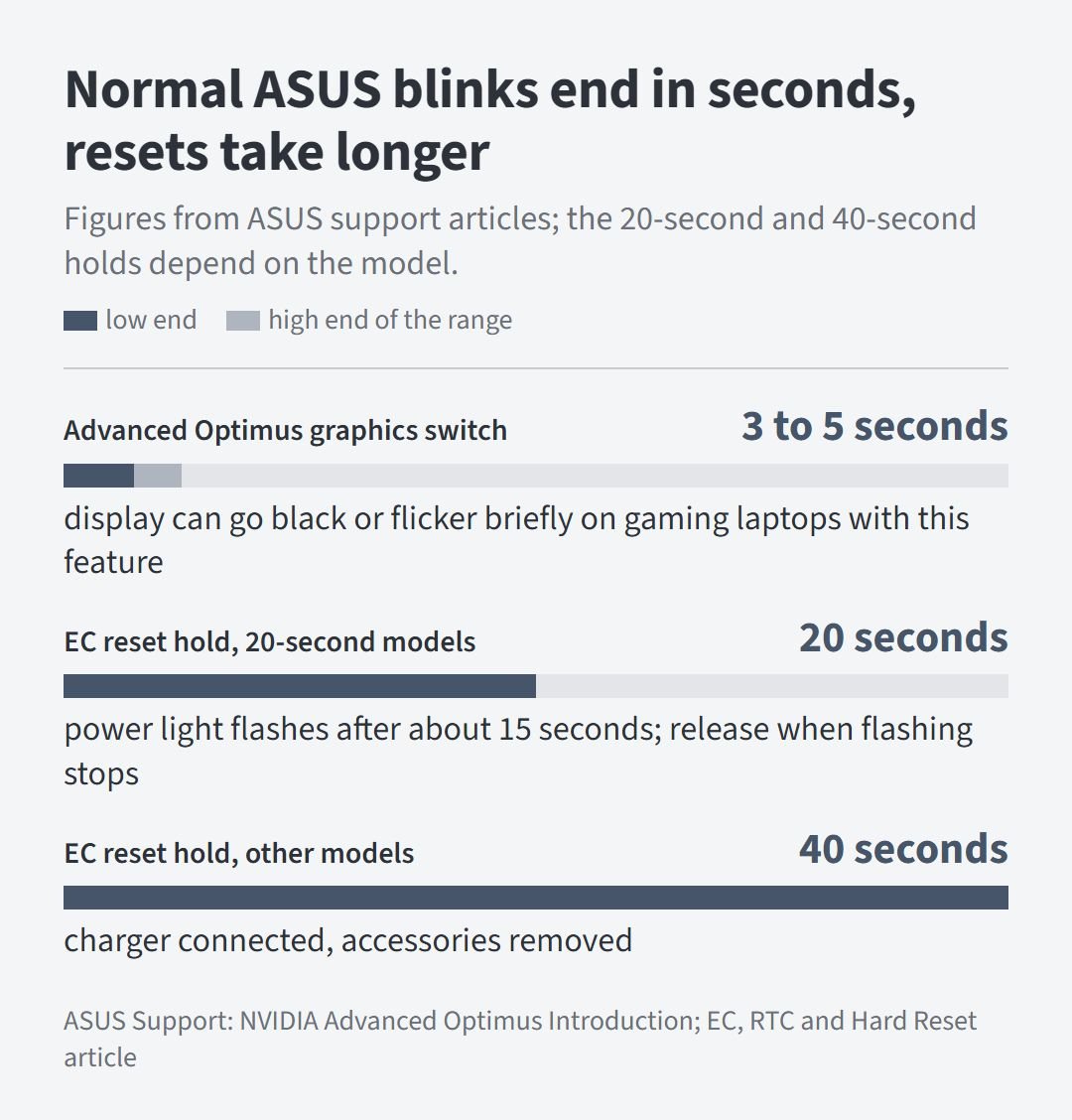
Yes, if it lasts only seconds and follows a clear trigger. ASUS documents three such blinks: a white or blue flash after the lock screen, a brief off-and-on when a gaming laptop’s charger comes out, and a 3 to 5 second black flicker when an Advanced Optimus laptop switches graphics.
- After the lock screen or waking from sleep. A temporary white blink in light mode, or a blue one in dark mode, is normal Windows behavior.
- When you pull the charger on a high refresh rate gaming laptop. The system drops to battery mode, Intel Display Refresh Rate Switching lowers the refresh rate, and the display switches off and on for a moment. Plug the adapter back in and you can choose the high rate again.
- When an Advanced Optimus gaming laptop changes graphics. The dynamic display switch moves between the integrated graphics and the GeForce graphics automatically. The display needs 3 to 5 seconds, and it can look black and flicker briefly while it does.
The last two ASUS pages are written for gaming notebooks, so don’t assume they cover a thin-and-light. A flicker that keeps going after those few seconds, or starts with no trigger at all, isn’t in this group.
Does the flicker survive in the BIOS?
A flicker that also appears on the BIOS screen points at the screen hardware, because Windows and its graphics driver haven’t loaded yet. ASUS reads it the same way and recommends its authorized repair center. A steady BIOS screen points at software.
Run the F2 test
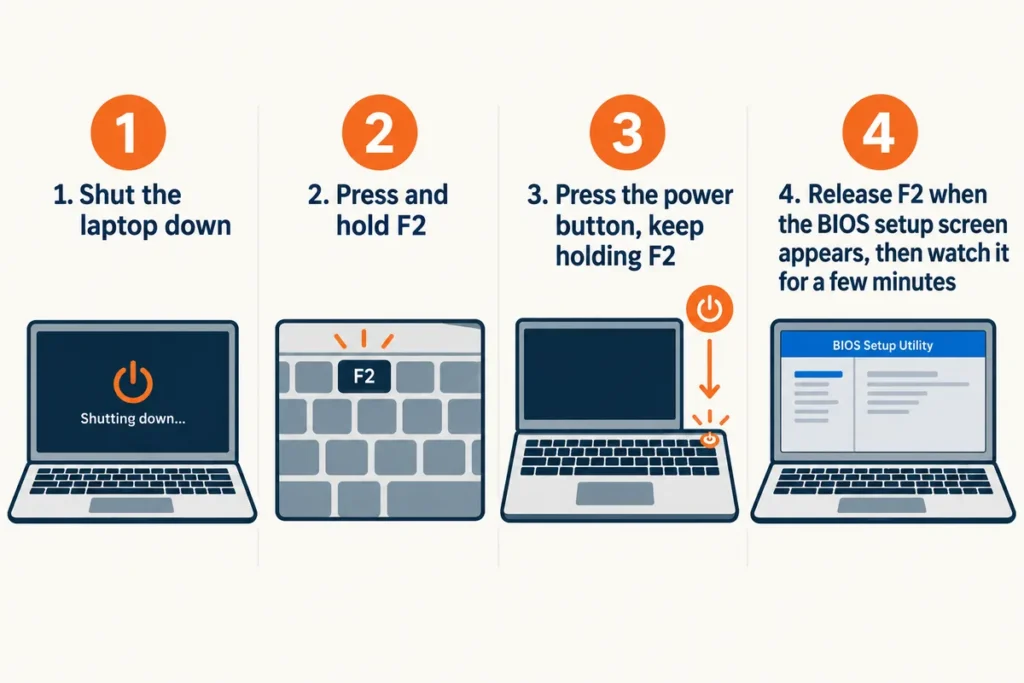
Shut the laptop down. Press and hold F2, press the power button, and keep holding F2 until the BIOS setup screen appears. Leave it there for a few minutes. A flicker that comes in bursts can hide during a quick look. The how to get into BIOS guide covers other brands’ keys if you need them.
Add an external monitor
Connect a monitor, then press the Windows logo key + P and choose Duplicate so both screens show the same picture. I run this comparison on every laptop before touching a setting, because it costs one cable. A monitor that stays steady while the built-in panel flickers keeps the cause on the laptop’s side of the cable.
A poster on the ROG forum with a TUF Gaming A15 saw that split. The flicker never showed in Task Manager, never showed on a TV over HDMI, and didn’t change at 60 Hz after a BIOS and an AMD driver update. A reply there pointed to the service center.
| What you see | What it points to | Go to |
|---|---|---|
| Flicker on the BIOS screen too | Screen hardware, per ASUS | When the lid or the cable is the problem |
| BIOS steady, flicker on the external monitor too | Windows, the graphics driver or an app | Software fixes in ASUS’s order |
| BIOS steady, monitor steady, built-in panel flickers in Windows | Something particular to the built-in panel: refresh rate switching, its driver or the display cable. These two tests can’t tell them apart. | Software fixes first, then the cable signs |
| Only the external monitor flickers | The monitor’s cable or port | Swap the cable and port; the laptop is fine |
When a clean BIOS isn’t proof
The BIOS rule isn’t airtight. A commenter on r/ASUSROG gave the textbook answer to a flickering laptop: no flicker in the BIOS means a bad driver. The original poster had already seen a steady BIOS screen, a steady safe mode and a steady external monitor.
“Prob a bad graphic driver , if it doesn’t flicker in the boot bios then it’s 100% a bad driver . Use DDU uninstaller to remove both igpu and dgpu drivers .”
– r/ASUSROG, August 2026 (2 upvotes, excerpt of a 407-character comment)
The person who asked, later in the thread: “I used DDU and removed display drivers did nothing. ill try re-seating the display cable”
– r/ASUSROG, August 2026 (1 upvote)
And later still: “I opened it and cleaned the display connectors with a cotton swab and some iso propyl and reseated it not seeing any flickering rn i think the issue is resolved hope it doesn’t come back tomorrow 😂”
– r/ASUSROG, August 2026 (1 upvote)
It’s one report, and the poster hoped it would last. It still shows why a steady BIOS lowers the odds of a hardware fault without clearing the display cable.
ASUS laptop screen flickering in Windows: software fixes in ASUS’s order
Work through these when the BIOS screen is steady or both screens flicker. Watch for a few minutes after each step before you move on.
- Check Task Manager. Press Ctrl + Shift + Esc. If Task Manager flickers with everything else, suspect the display driver. If it stays steady while the rest of the screen flickers, suspect an app: update it, or uninstall recent apps one at a time and restart after each.
- Reset the graphics driver. Press the Windows logo key + Ctrl + Shift + B. If nothing changes, restart.
- Fix the driver from the ASUS side. If the flicker began after a graphics driver update, uninstall the present driver and install the latest one published on the ASUS support site. A newer version from the graphics vendor may not have passed the compatibility test. If you updated nothing, look for a newer ASUS-published driver anyway. On laptops with two graphics adapters, such as Intel with NVIDIA, check both under Display adapters in Device Manager.
- Roll back after a Windows Update. In Device Manager, expand Display adapters, right-click the adapter, choose Properties, open the Driver tab and select Roll Back Driver. A grayed-out button means Windows has no earlier driver to return to. If the flicker blocks clicking, start in safe mode first.
- Change the refresh rate. Open Settings > System > Display > Advanced display and use Choose a refresh rate. The list depends on the panel. On Windows 11, the same page has a Dynamic refresh rate toggle for displays with variable refresh rate and at least 120 Hz; Microsoft doesn’t link it to flicker, so switching it off is a test, not a known fix.
- Turn off hardware acceleration when one program is the culprit. In Chrome or Edge, open More > Settings > System and turn off Use hardware acceleration when available. In Office, open File > Options > Advanced and tick Disable hardware graphics acceleration in the Display section. Office needs the change in each program separately.
- Undo a memory change. If you added or swapped RAM before the flicker started, put the old memory back. Only some models have a cover for the memory compartment.
- Update the rest. Install BIOS, Windows and driver updates. The MyASUS app has a System Update function for drivers.
Steps 1, 2 and 4 come from Microsoft’s flicker guide, and step 5 from Microsoft’s refresh rate page. Steps 3, 7 and 8 come from ASUS’s main display article, and step 6 from ASUS’s article on flicker in Office and browsers.
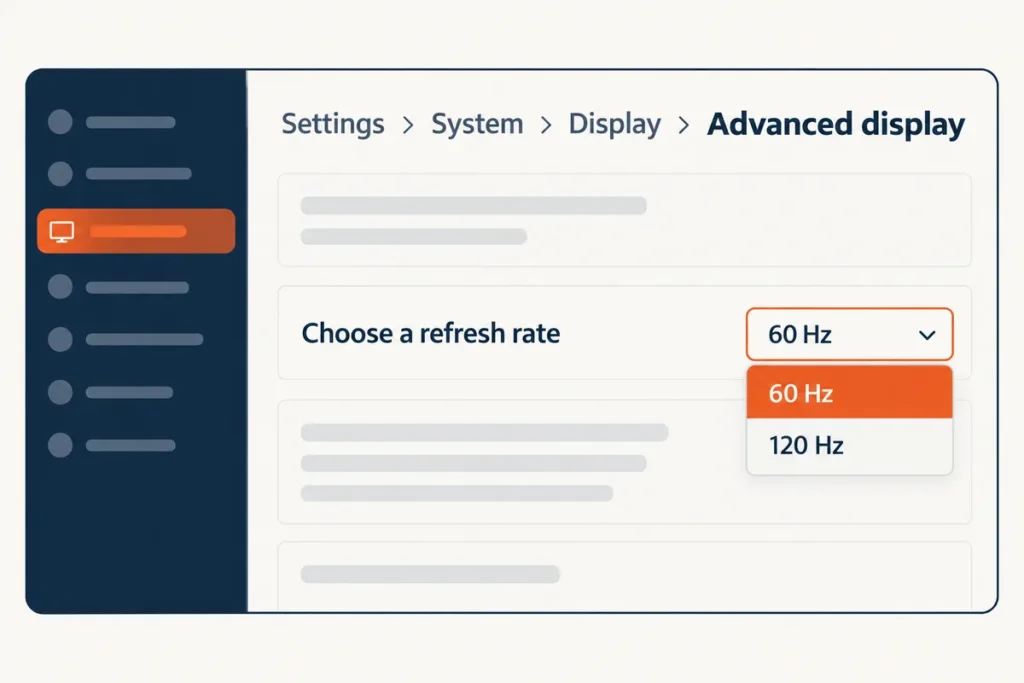
A flicker that stops at 60 Hz is a clue, not a repair. A TUF F17 owner on Microsoft’s answers forum had a clear screen only at 60 Hz, and the flicker came back while gaming even after the drivers were reinstalled. The Microsoft Community specialist who replied read the pattern as a hardware problem in the graphics card or the display and advised ASUS after-sales support.
MyASUS diagnosis and the two free resets
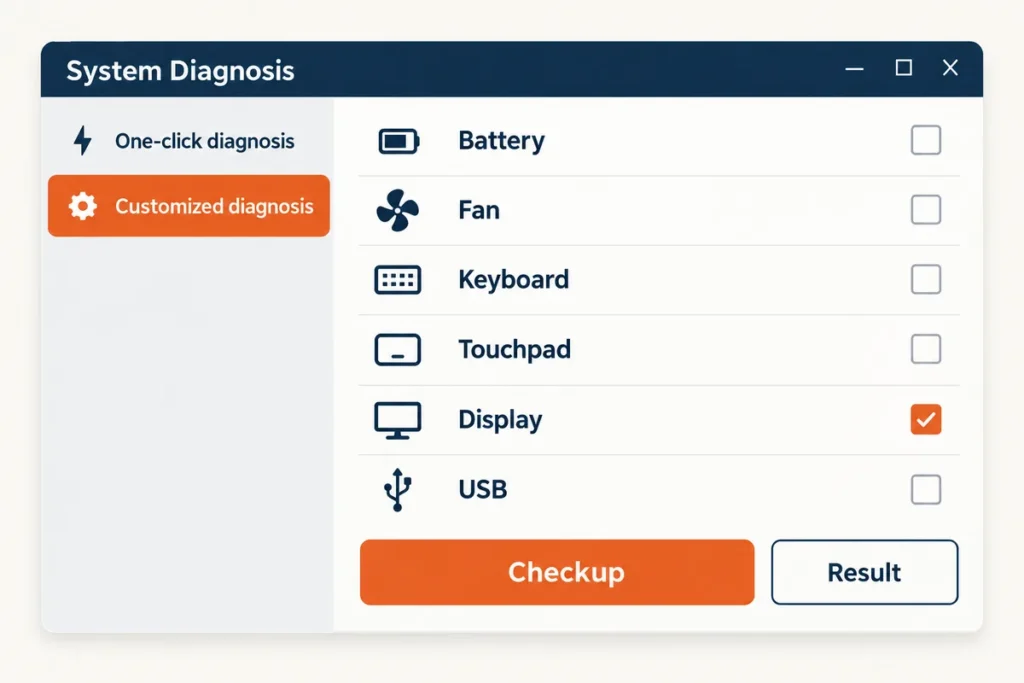
Open MyASUS, go to System Diagnosis and pick Customized diagnosis. The hardware list includes Display, along with Keyboard, Touchpad and USB. Tick Display, click Checkup and give it time; some tests take several minutes. Click Result when it finishes. A hardware error comes with suggestions, and the same page can issue a repair ticket. Save your BitLocker recovery key first, because some updates the checkup suggests can trigger BitLocker recovery.
The first reset is the EC reset. Remove every accessory, shut the laptop down, connect the original charger and hold the power button for 40 seconds. Some models use a 20-second design instead. On those, the power light flashes rapidly after about 15 seconds of holding, and you release the button when the flashing stops. The ASUS laptop won’t turn on guide walks through the hold in more detail, and the ASUS laptop black screen guide covers a screen that stays dark afterward.
The second reset is the BIOS defaults. Enter the BIOS with F2, restore the settings using ASUS’s restore BIOS settings steps, and let the laptop restart into Windows. Check for the flicker again before you try anything else.
When the lid or the cable is the problem
Move the lid slowly with the screen on and watch whether the flicker follows it. A flicker that tracks the lid angle, or one that shows in the BIOS, is hardware. Lines or bars across the picture, rather than a flicker, fit the lines on a laptop screen checks better.
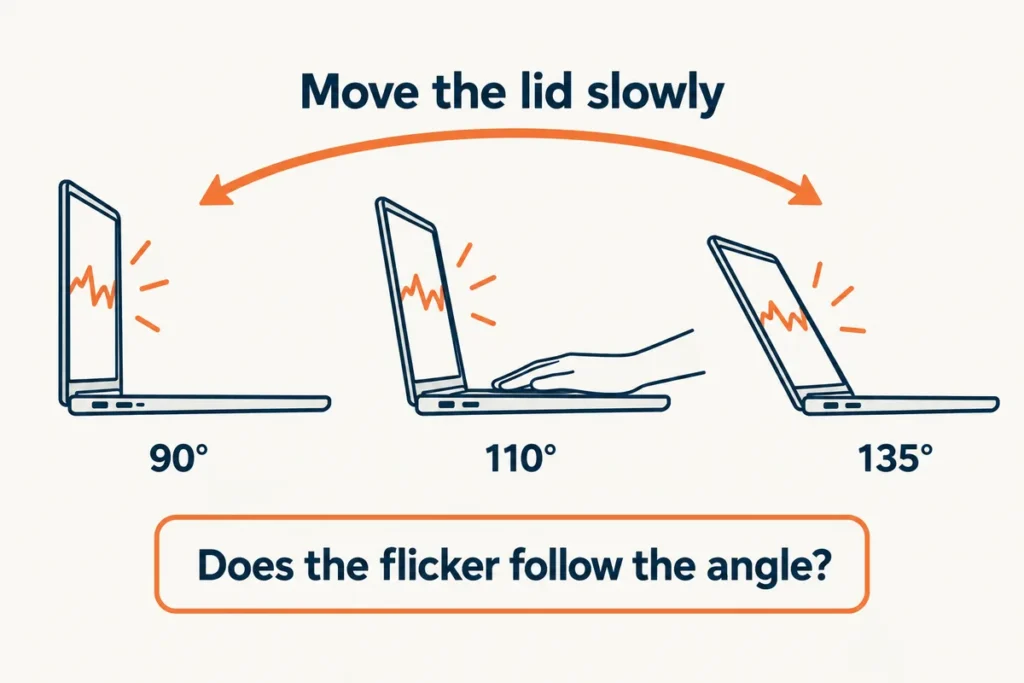
A JustAnswer technician had a TUF A15 owner press on the top, the sides and the hinges, because the connection can become loose. A commenter in an r/ASUS thread described a screen that worked only at certain angles. Rest a hand on the keyboard deck while you test, and don’t flex the lid. The most upvoted reply in that thread went straight to ASUS.
“Bad screen connector better to do an RMA or contact ASUS support as this should be covered under factory warranty. You have won the unlucky lottery I hope the RMA process will be quick and simple.”
– r/ASUS, July 2026 (22 upvotes)
The warranty remark is the commenter’s, so check your own coverage with ASUS, and back up your files before the laptop leaves your hands. Reseating a display connector means opening the case: shut down, unplug the charger and disconnect the internal battery first, and hand the laptop over if you haven’t done that before.
When you contact ASUS, tell them whether the flicker shows in the BIOS, whether an external monitor stays steady, which refresh rates you tried and what the MyASUS Display result said. Those four answers save the first round of questions.