

When an HP laptop won’t turn on, the first free fix is HP’s hard reset. Unplug the adapter and every optional device, hold the power button for about 20 seconds, then plug in only the HP adapter and press power, as HP’s startup troubleshooting page lays out.
That reset has a mirror image that works the opposite way. A few HP fixes want the adapter plugged in while you hold keys such as Windows + V or Windows + B along with the power button. Telling the two apart is most of the job, and it keeps you from spending an evening on the wrong one. A laptop that lights up but shows no picture belongs in the HP laptop black screen guide. Everything below is for an HP that does nothing, or flashes and quits.
Give a dark HP five minutes before you touch it
HP says to wait at least 5 minutes before troubleshooting a computer that won’t turn on. It may be installing a Windows or BIOS update, or detecting new hardware, and the screen can stay blank for several minutes while it does.
HP adds that interrupting an update might damage the computer, so it asks you not to turn it off or unplug it while one runs. Plug the charger in, put the laptop somewhere safe and leave the power button alone. The usual mistake is a second press at minute two.
Test the adapter and the port the way HP does
HP’s own adapter checks cost nothing and rule out the cheapest failure first. Run them in this order, with the charger in the wall and the plug seated in the laptop.
- Plug the adapter straight into a wall outlet, not a surge protector. Test that outlet with a lamp or anything you know works, and move to another outlet if the lamp stays dark.
- Look at the light on the adapter, if it has one. HP notes that some adapters have no light at all. Then look for the light at the laptop’s power port.
- Use the HP adapter that shipped with the laptop. HP’s page asks you to confirm that both the adapter and the notebook are genuine HP parts, so a charger borrowed from a drawer is not a clean test.
- Swap in a power cord you know works. If that brings the light back, HP says the cord needs replacing, not the adapter.
If the laptop does reach the desktop on the adapter, the battery icon near the clock settles the question. HP says a charging icon means the adapter is working, and a plain battery meter means it isn’t.
A brand-new HP gets one more check. If a white light on the adapter blinks the first time you use it, HP says the battery is still in Shipping Mode. Turn the laptop off, connect the adapter, let it charge for at least 30 minutes, and then start it.
On a model with a battery latch on the bottom, HP’s support video has a battery test. Remove the battery and check the contacts, unplug the USB devices and the cord, put the battery back, and plug in the adapter for 15 to 30 minutes. Then unplug the cord and press power. If it starts on battery alone, the battery works, and if it doesn’t, HP says to contact HP for a replacement. My laptop battery replacement guide covers testing and matching the part.
Adapter out: the hold HP prints as 15 seconds and as 20
This is the reset to run before anything else, and it needs no tools. HP says it does not affect the data saved on the computer.
- Turn the laptop off. A laptop that won’t start is usually off already, so move on.
- Disconnect the AC adapter.
- Remove memory cards and discs, then disconnect printers, scanners, external drives and USB flash drives. HP says to leave a mouse, keyboard or monitor connected.
- With the adapter still unplugged, press and hold the power button for about 20 seconds.
- Reconnect the HP adapter and turn the laptop on.
HP’s two pages disagree on the length. The startup page says about 20 seconds, while the page on startup lights and beeps says about 15 seconds for a laptop with a fixed battery. I hold past 20, because that satisfies both figures and the embedded controller reset further down, which HP words as more than 12 seconds.
Longer isn’t required. One commenter on r/HPLaptops goes well past HP’s number:
“Did you try the following Disconnect power, press and hold power for at least 30 seconds, longer is allowed, if the lights go out, restart the count to 30 while you hold. Then wait, next press power It’s the first step for reviving these.”
– r/HPLaptops, August 2026 (2 upvotes)
I can’t point to an HP page that asks for 30, so I stay near 20 to 25 and count it on a phone timer. HP adds one line for business laptops: after the reset, press and hold Windows + V while you press the power button to turn it on. The page doesn’t list which models count as business, so if yours was sold as a business model, try that combination on the first start.
Count the Caps Lock blinks, red then white
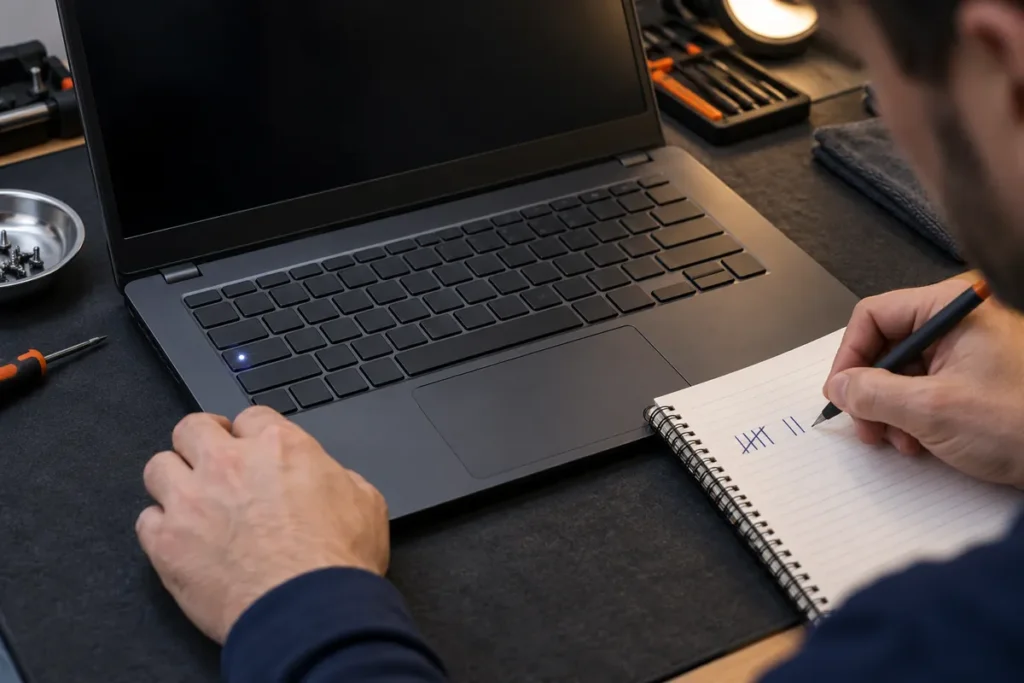
Some HP laptops report a startup fault with a light instead of a screen. HP says the LEDs near the Caps Lock or Num Lock keys blink, usually 1 to 8 times in a series, when you try to start the computer. Red blinks are long and name the major category, and white blinks are short and name the minor one. A laptop without a two-color light shows both in white.
Count the red blinks first, then the white, and watch the series repeat before you trust the count. HP also notes that audible beep codes are not supported on all models, and I’d extend that caution to the light: a silent, unlit laptop is not giving you a code. This is the series I look for, as HP’s light and beep code page sorts them.
| Series you count | HP says it means | What HP says to do |
|---|---|---|
| 2 red, 2 white | Main area of the BIOS is corrupted and no recovery image is available | Recover the BIOS (next section) |
| 2 red, 3 white 2 red, 4 white 5 red, 2 white | Embedded controller wants a key sequence, is checking the boot block, or can’t find valid firmware | Embedded controller reset: adapter out, hold power more than 12 seconds |
| 3 red, 2 white | Possible memory failure | Reseat the memory module, or have it serviced if you can’t reach it |
| 3 red, 3 white | Possible graphics chip failure | Contact HP for repair |
| 3 red, 4 white | Possible power system failure | Recheck the power cable connections and confirm the adapter is rated for the system |
| 3 red, 5 white | Processor not detected | Contact HP for system board or CPU repair |
| 3 red, 6 white | Processor does not support an enabled feature | Clear the CMOS and leave that setting alone |
| 4 red, 2 white 4 red, 3 white 4 red, 4 white | Processor too hot, ambient temperature too high, or graphics processor too hot | Clean the air vents with canned air, then wait about 10 minutes before restarting |
| 5 red, 3 white 5 red, 4 white | Embedded controller can’t reach the BIOS in time, or waits too long for it to finish board startup | Remove all accessory devices; contact HP if it persists |
The embedded controller is a chip on the board that manages power and keyboard input, which is why three different series point at the same reset. HP’s steps run in this order: disconnect the AC power, hold the power button for more than 12 seconds, release it, wait for the laptop to start normally, and reconnect the adapter last. It is the adapter-out hold from the last section, and the 20-second version covers it.
A single flash isn’t a series. One owner on r/Hewlett_Packard describes what many people see:
“My laptop (model HP Pavillion Laptop 16) won’t turn on. It doesn’t make noise or anything, it was working perfectly fine earlier,and it went dead. But now its fully charged and won’t power on, it doesn’t make a sound. The power light comes on for a second then when the caps lock light turns on, it goes right back off. What do I do? Is it time to let it rest in hell?”
– r/Hewlett_Packard, September 2026 (2 upvotes)
I can’t read a code out of that description, and the owner may not have been able to either. Try the hold first, then press power again with your eyes on the Caps Lock light, and count whatever repeats.
Adapter in: Windows + V and Windows + B
The other family of resets runs with the adapter connected, and you hold keys while you press power. There are two, and they fix different things.
The CMOS reset loads default BIOS settings. For consumer notebooks, HP’s steps run like this, and the method varies by computer type:
- Plug in the adapter.
- Turn the laptop off and wait at least five seconds.
- Hold Windows + V. While you hold it, press and hold the power button for at least two seconds but no more than three.
- Release the power button. Keep Windows + V down until a CMOS Reset screen appears or you hear beeping.
The laptop then restarts, and you can get into the BIOS and the diagnostics. An invalid checksum error means the reset didn’t work.
BIOS recovery is for the 2 red, 2 white series and HP’s other signs of a damaged BIOS. Turn the laptop off with the adapter in, hold Windows + B, and press the power button. After two to three seconds, release the power button but keep holding the keys. Then wait. If no HP BIOS Update screen appears, HP says to repeat the whole thing with Windows + V, and a power light that goes out means you held the button too long. The black screen guide walks through the same recovery in more detail, since it fits both symptoms.
Two limits matter here. HP says PCs with its Sure Start feature don’t support the manual Windows + B recovery, because Sure Start repairs a corrupted BIOS by itself from a protected backup copy. The product specifications for your exact model say whether it has Sure Start. HP also notes that on business computers, IT staff may manage the BIOS settings, so ask them before you reset anything on a work laptop.

The figure is the short version: no keys and a long hold when the adapter is out, keys and a short press when it is in.
It turns on but never reaches Windows
A laptop that shows the HP logo and then freezes, or sits on the Windows loading screen, may only be hot or dusty. HP’s first suggestion is to clean the vents with compressed air and restart. A laptop that is lit and shows nothing at all is a different case, covered in the black screen guide linked above.
If Windows still won’t load, HP’s hardware test runs without it. Hold the power button for at least five seconds to turn the laptop off, then turn it on and tap Esc about once a second until a menu appears. Press F2. In HP PC Hardware Diagnostics (UEFI), choose System Tests and run the Fast Test, which HP puts at about four minutes.
A failed part comes with a 24-digit failure ID. Write it down exactly, because it is what HP support starts from. If the F2 menu never appears, HP offers the same diagnostics on a USB drive, and making one takes a second working computer.
Windows recovery sits one step further out. Restart the laptop and tap F11, or hold Shift while you choose Restart, and then choose Troubleshoot. Reset this PC is on that screen, but I only go there after the drive is backed up or imaged, because a reset can remove files. If the screen is blue and shows an error instead, HP treats that as its own problem, and the stop code on that screen is the place to start.
Where I stop and send an HP out
Some HP laptops are past anything the free fixes can reach, and pushing on after that only risks the drive and the board. Stop and get the laptop serviced when any of these is true:
- The battery is swollen, the case bulges or the trackpad lifts. Don’t charge it or press power. Take it to a recycler or a repair shop.
- There is no light, no fan noise and no sound, and the adapter checks and the adapter-out hold changed nothing. HP’s own wording for that case is that the computer might not be receiving power, and it routes you to a repair.
- The series is 3 red with 3 white or 5 white. HP points to a graphics chip or processor fault and says to contact HP for repair.
- The same series comes back after the embedded controller reset, the CMOS reset and the BIOS recovery.
- The diagnostics fail the memory or the storage and your model has no service door to reach either one.
- The drive clicks. Stop powering it on and send it to a data recovery lab, because I don’t do clean-room recovery.
Board-level repair is where I stop too, since I don’t do microsoldering. A laptop under HP’s warranty goes to HP before anyone opens it. Tell them the product number, what the lights did, and which resets you already ran, in that order.
HP laptop won’t turn on questions
How do I force an HP laptop to turn on?
Unplug the adapter and optional devices, hold the power button for about 20 seconds, then plug in the HP adapter and press power. If a blink series shows up, match it in the table above before you try anything else.
Why won’t my HP laptop turn on when it’s plugged in?
HP points at the AC adapter first. Test the outlet with a lamp, look for the adapter light, and try a power cord you know works. If all of that passes, run the adapter-out hold, because the laptop itself may be stuck in a power state.
Does an HP hard reset erase my files?
No. HP says a hard reset does not affect data saved on the computer. Resetting or reinstalling Windows is different, so keep a cloud backup of the files you can’t replace.
