
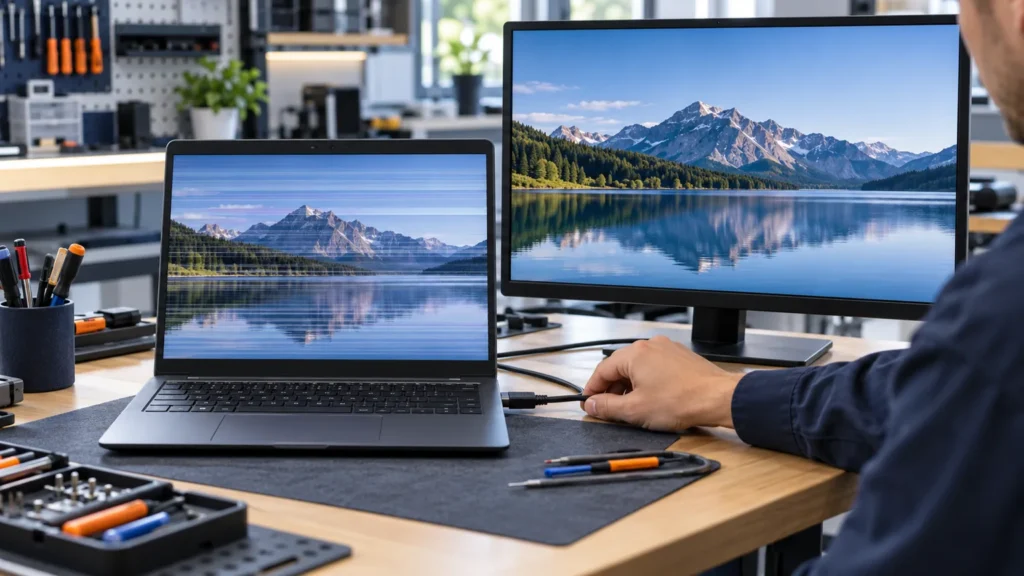
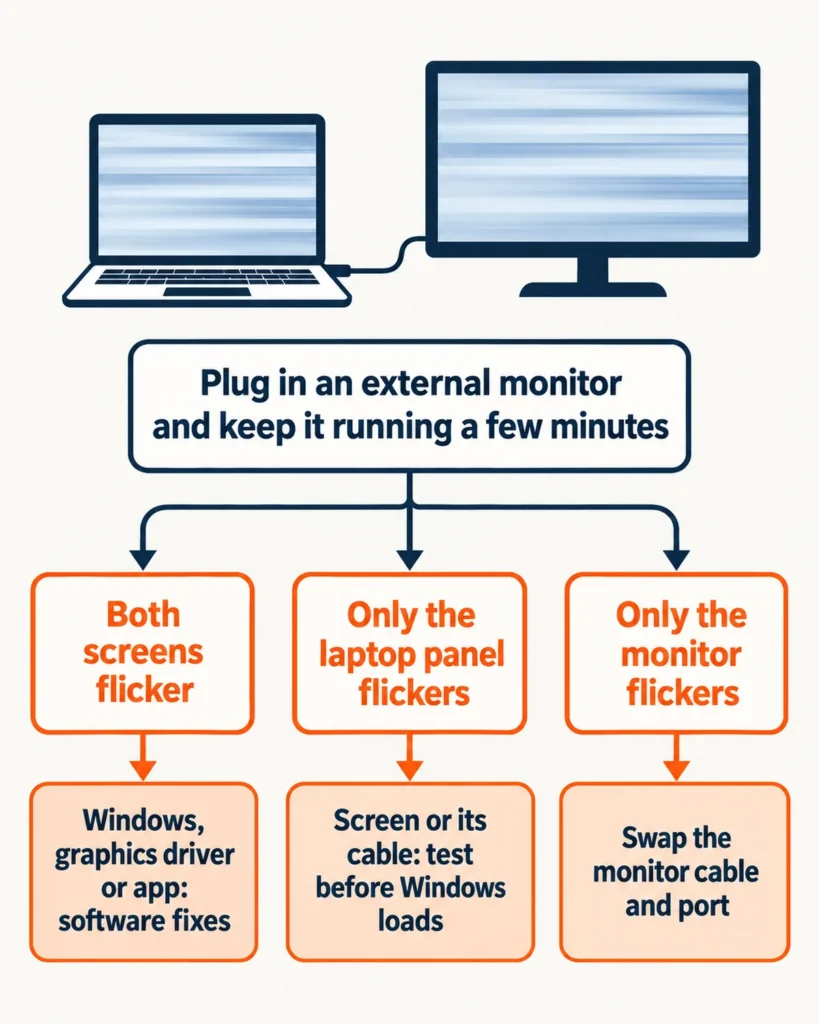
HP laptop screen flickering comes from two families of causes, and an external monitor sorts them in one test. If the monitor flickers too, suspect Windows, the graphics driver or an app. If it stays steady while the laptop panel flickers, suspect the screen or its cable.
The two big vendors read this differently. Microsoft’s flicker guide calls screen flickering in Windows usually a display driver issue or an incompatible app. HP’s screen-issues page lists a flickering screen among conditions that point at the screen or other hardware, with no adjustment to try and repair as the answer. Both can be right, because they describe different flickers, and the monitor test shows which one you have.
HP, Dell and Lenovo laptops filled most of the bench work in metro Atlanta. I run the monitor test before touching a single setting, because it costs one cable and it changes the plan.
Plug in a monitor first
Use HDMI, DisplayPort or a USB-C port that carries video, and set Windows to duplicate the display so both screens show the same picture. Leave the monitor running through a few minutes of normal use. A flicker that comes and goes can hide for the length of a quick look.
- Both screens flicker. The cause sits in Windows or the graphics hardware. Work through the software fixes below.
- Only the laptop panel flickers. The screen or its cable is the likely cause. Skip ahead to the test before Windows loads.
- Only the monitor flickers. The laptop panel is fine. Swap the monitor’s cable and port first.
A steady monitor is strong evidence, not proof. If the laptop panel never lights, even with the monitor attached, you have a black screen rather than a flicker, and the HP laptop black screen checks cover that case.
HP laptop screen flickering on both screens: fix the software in order
Start with Task Manager. Press Ctrl + Shift + Esc (Ctrl + Alt + Delete also opens it) and watch whether Task Manager flickers along with everything else. If it does, a display driver is probably the cause. If Task Manager holds steady while the rest of the screen flickers, an incompatible app is the likelier cause, so update or uninstall whatever you installed last.
If the flicker is too bad to click through, start Windows in safe mode first. The driver steps below can need it.
- Reset the graphics driver. Press the Windows logo key + Ctrl + Shift + B. It may clear the flicker. If it doesn’t, restart the laptop.
- Roll back the display driver if the flicker began after a Windows update. Open Device Manager, expand Display adapters, right-click the adapter, choose Properties, open the Driver tab and select Roll Back Driver. You need administrator rights. A grayed-out button means Windows has no earlier driver to return to.
- Update the display driver, then uninstall it if the flicker stays. In Device Manager, right-click the adapter and choose Update driver. If that changes nothing, open Properties, then the Driver tab, choose Uninstall Device, tick Attempt to remove the driver for this device and restart. Windows then tries to reinstall the driver. The tick box can be missing outside safe mode.
- Install the updates HP offers. Open HP Support Assistant (version 8 or later), find your computer on the My Dashboard tab and click Updates. Keep the charger connected during a BIOS update, and take BIOS updates only from HP. HP Support Assistant isn’t available on Windows in S mode, so use Windows Update there.
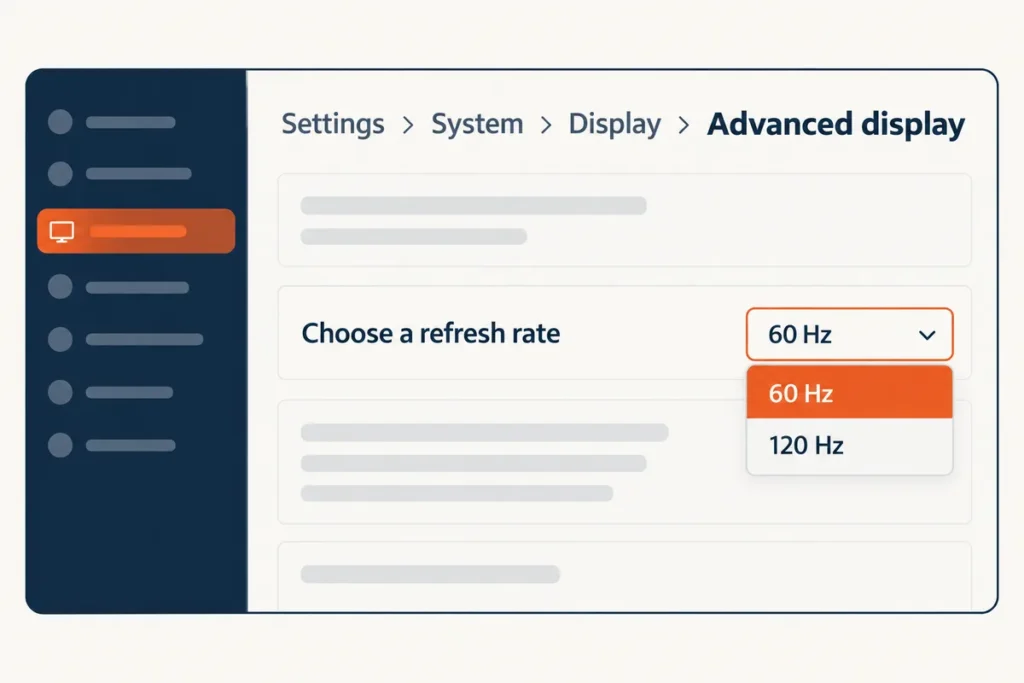
- Check the refresh rate. On Windows 11, open Settings > System > Display > Advanced display and open the Choose a refresh rate list. Many gaming models offer more than one rate. Try each for a few minutes, starting with the highest.
- Turn off content-based brightness. On Windows 11, open Settings > System > Power & battery > Energy recommendations. The setting called Save power by screen contrast and brightness for the content shown changes brightness and contrast automatically on the built-in screen, and it can be turned off at any time. If the flicker looks like brightness pumping when the picture changes, test this first, then the setting called Change brightness automatically when lighting around me changes.
- Test Panel Self Refresh on Intel graphics. Open Intel Graphics Command Center, choose System, open the Power tab and use the Panel Self Refresh button. Intel’s article covers Windows 10 and older Intel UHD, Iris and HD graphics, and describes the feature only as a power saver, never as a flicker cure. Switch it back on if nothing changes, and expect newer laptops to place the control elsewhere or leave it out.
Lowering the refresh rate is a fair test and a fair stopgap. It does not prove a setting caused the flicker. Owners of HP Victus gaming laptops described the same split in r/HPVictus, and the replies read it as a worn panel.
“same problem i have also faced. when i switched to 144hz it starts flickering but when i switched into 60hz its completely fine.. you have no choice you have to replace screen…i faced this problem after my warrenty period…”
– r/HPVictus, June 2026 (1 upvote, excerpt of a 358-character comment)
The worn-panel verdict belongs to the commenter, not to HP. A rate change is a clue, not a cure: a flicker that stops at 60 Hz and returns at the higher rate still needs the monitor test and the checks that follow.
If the monitor still flickers after every step above, the graphics hardware becomes the suspect, and HP Tech Takes lists a failing graphics card among the hardware causes. A flicker that arrives with blue screens belongs with the HP laptop blue screen checks, where HP’s hardware test comes first.
Does the flicker follow the charger?
Sometimes. A flicker that gets worse when you plug in can come from the power mode Windows switches to, or from the charger itself. Compare power modes first, then swap in a charger with the same specs before you blame the screen.
Run the laptop on battery alone for a few minutes, then plug in and watch. If the flicker shows up on only one side, set the same power mode for both (Settings > System > Power & battery) and test again. Use an original charger or one with matching specs for the swap.
“try a different charger if you have access to one, even a compatible third party one, if flickering goes away or drops a lot with a different charger, yours is the problem”
– r/techsupport, September 2026 (1 upvote, excerpt of a 1,052-character comment)
The person who asked, on September 29: “The new charger just arrived and it’s not flickering with anymore thank you sir”
– r/techsupport, September 2026 (1 upvote)
The same person, in a second reply that day: “It started flickering again”
– r/techsupport, September 2026 (1 upvote)
The poster never named the laptop, and the thread shows the limit of this test. A charger swap is cheap and worth one try. A flicker that survives it, or comes back after it, goes back to the monitor test.
When only the laptop panel flickers: test before Windows loads
Restart and watch the HP logo and the first screens after it. A flicker there happens with no Windows driver in the picture. HP notes that physical damage to an LCD can show up in the BIOS-level startup, before the computer boots into Windows.
The BIOS setup screen is another pre-Windows screen to watch, and the BIOS guide lists the key for each brand.
HP’s own test screen is the better stage. Hold the power button for at least five seconds to turn the laptop off, turn it on, press Esc about once a second, and press F2 when the menu appears. That opens HP PC Hardware Diagnostics (UEFI), which HP provides for laptops where Windows can’t start. If the F2 menu doesn’t list it, run the diagnostics from a USB drive.
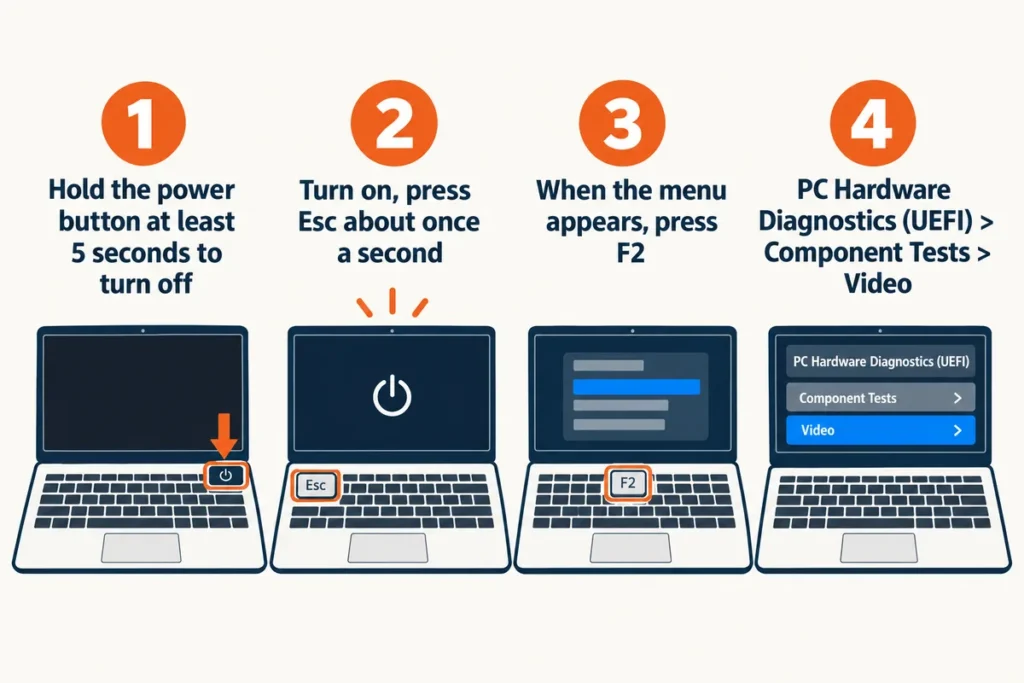
Choose Component Tests, then Video. HP lists three video tests, and their run times differ a lot, from about 1 minute to about 20. The menu can differ by model, so a missing entry is not a fault.
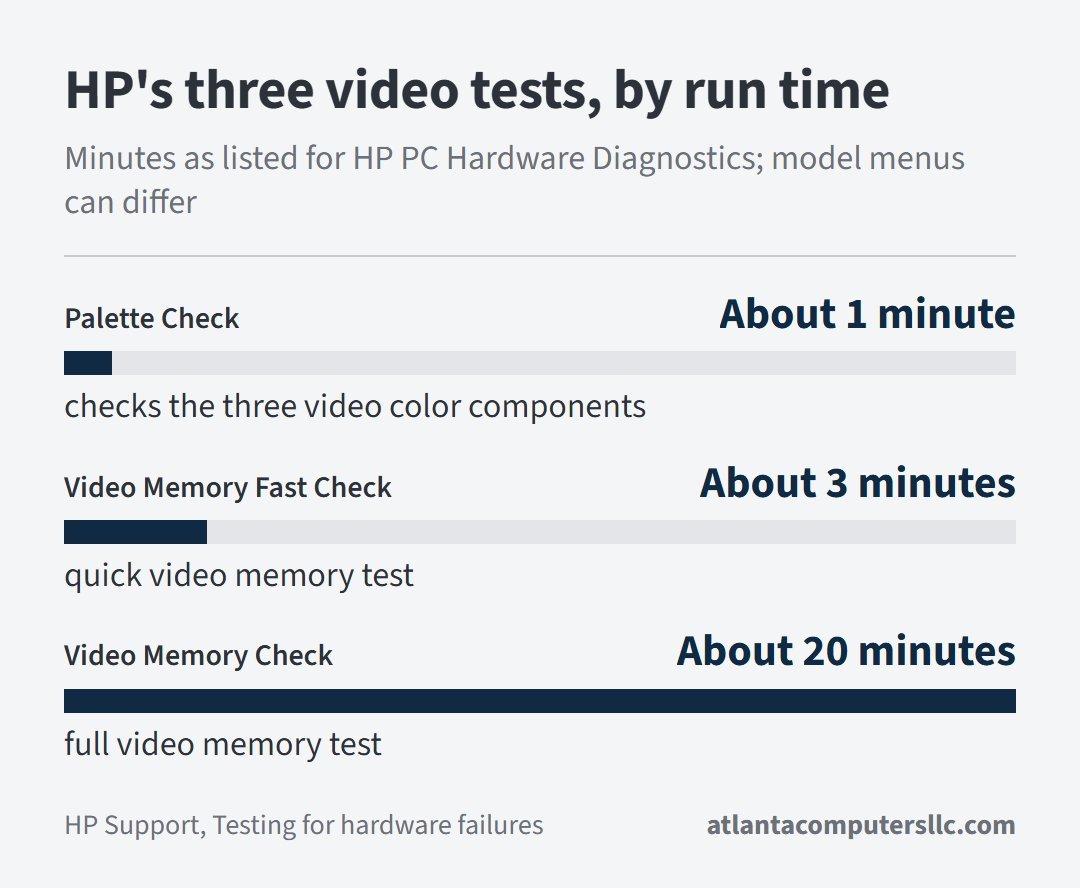
Read a pass carefully. HP describes these tests as video memory and color checks, and none of the descriptions mentions the panel or its cable. A pass says the memory and colors tested fine and says nothing about the screen itself. If a test fails, scan the QR code or write down the 24-digit failure ID for HP support.
Last, the lid. With the flicker showing, open and close the lid slowly through its normal range, once. If the picture changes with the angle, the display cable or the hinge area is the suspect, and HP Tech Takes ties flicker that appears when you move the screen to loose or damaged internal connections. Don’t flex the lid or press on the bezel to chase the flicker, because that can make a loose connection worse.
Write down what you saw: the logo, the sign-in screen, one brightness level, a certain lid angle. A repair technician can use every one of those.
Where DIY ends
Stop if the flicker shows at the HP logo or on the F2 diagnostics screen, changes with the lid angle, or stays on the laptop panel after the monitor test and the software fixes.
HP’s screen-issues page lists a flickering screen among conditions with no adjustments, where the screen requires repair, and it recommends an authorized repair center for replacing a damaged display.
Reseating the display cable means taking the laptop apart. Unplug the charger first and disconnect the battery where the case allows it. If you have never opened a laptop, hand this step off.
If the monitor flickers too after every software step, the graphics hardware is the suspect. That points at board-level work. I don’t do it, and it is not a home repair.
Until the repair, a steady external monitor keeps the laptop usable. Copy your files off while the picture is still good, so a failing screen can’t block them later. Hand over your notes with the laptop: which screen flickered, which test showed it, and the failure ID if HP’s diagnostics produced one.
Common questions about a flickering HP laptop
What does HP laptop screen flickering at startup mean?
A flicker on the HP logo or the diagnostics menu happens before Windows loads, so Windows drivers and apps are ruled out and the screen, its cable or the graphics hardware is the suspect. If the logo is steady and the flicker starts after sign-in, work through the software fixes above.
Does a flickering screen mean a virus?
Rarely. Microsoft’s flicker guide names a display driver or an incompatible app as the usual causes, and malware is not on its list. If you also see pop-ups or programs you did not install, follow the steps for removing a virus from a laptop.
Why does the screen flicker with horizontal lines?
Lines that come with a flicker point to hardware. HP’s screen-issues page puts vertical lines and a solid horizontal green line in the same screen-or-hardware group as a flickering screen. Run the monitor test and the test before Windows loads. Lines that also appear on the external monitor lean toward the graphics hardware.