
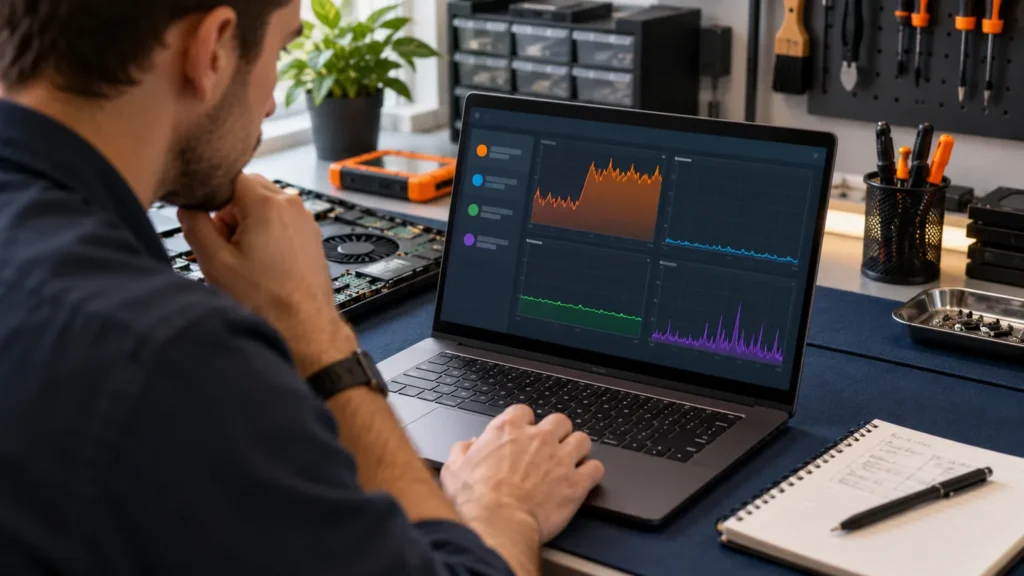
A computer running slow is almost always held back by one resource: the disk, the memory or the processor. Restart it, open Task Manager with Ctrl+Shift+Esc, and see which one sits pinned near the top. That column decides whether the fix is free, a part or a shop visit.
I run the checks in this order on a Windows laptop or desktop. Free fixes come first, then a hardware test, and an SSD or memory upgrade only when a measurement asks for it. On the Dell, HP and Lenovo machines that came through my bench, a computer running slow was usually slow for dull reasons: a startup list that had grown for years and a drive with no room left. Macs get a short answer at the end.
Restart first, then see what is pinned in Task Manager
Restart from Start, Power, Restart. HP’s tech blog says a reboot clears out the memory cache and usually leaves the computer more responsive, and Microsoft’s tips for a slow PC end on the same step after closing the apps and browser tabs you don’t need.
With a computer running slow, a restart sometimes settles it for an hour and sometimes for good, so don’t stop there. Once it’s back up, leave it alone for a couple of minutes, then press Ctrl+Shift+Esc. On the Processes tab, click the CPU, Memory and Disk headings one at a time. Each click sorts the list by that column, so the heaviest process rises to the top. Microsoft names this view, along with the Performance and Startup apps tabs, as the place to watch resource use and spot heavy apps.
Then use the machine until it stalls, with Task Manager open beside the work. The column that climbs to the ceiling while the stall lasts is the suspect. A single snapshot can mislead, because a scan or an update spikes any column for a few minutes, so look again after five quiet minutes.
One reply in an r/pchelp thread about a slow PC lists the suspects:
“open device manager and see if anything has an exclamation mark. Unfortunately your video doesnt tell us anything other than things take forever to open, which could be caused by anything. Could be failing disk, overheating cpu, windows corruption, or bad drivers. You will have to go through troubleshooting each one to see where an error might be.”
– r/pchelp, October 2026 (2 upvotes)
What the pinned column points to
Read Task Manager while the computer is slow, then find the row below that matches. The row says which fix to try first and whether a part is even on the table.
| What you see while it’s slow | What it usually points to | Next step |
|---|---|---|
| Disk near 100% on a laptop with a spinning hard drive, even with little open | The drive can’t keep up. Dell says SSDs are faster than hard disk drives, and a nearly full drive makes the gap worse. | Free space and trim the startup list below. If the disk stays pinned, test the drive, then consider an SSD. |
| Memory near the top with only a few apps open | Too much loading at sign-in, or one app holding on to memory | Disable startup apps. If memory still sits near the top with just your usual apps, read the upgrade section. |
| CPU high, fan loud, case hot | Heat. Dell says a dusty fan can overheat the computer, and a processor that overheats slows itself down (thermal throttling). Or one process is running away. | Sort by CPU to see which. If nothing stands out, clean the vents with the machine off and unplugged. |
| Antimalware Service Executable, or another scanner’s name, at the top | A scan is running, which is normal for a while | Let it finish. If it never settles, the lightweight antivirus page shows how to prove it with Task Manager. |
| Nothing pinned, but the browser crawls | Extensions or browser settings | Turn extensions off one at a time. If the homepage or search engine keeps changing, see browser hijacker removal. |
| Everything looks calm, yet it freezes or restarts | Failing memory or a failing drive | Skip to the hardware test. |
Free fixes for a computer running slow, in the order I run them
Each of these costs nothing, and each can be checked against the reading you just took. The menu paths are for Windows 11. Microsoft’s performance page lists the Windows 10 versions beside them.
Startup apps: what Microsoft counts as High impact
In Task Manager, open Startup apps, right-click something you don’t need at sign-in and choose Disable. Nothing gets uninstalled, and the same menu has Enable if you guess wrong. Settings, Apps, Startup holds the same on and off switches.
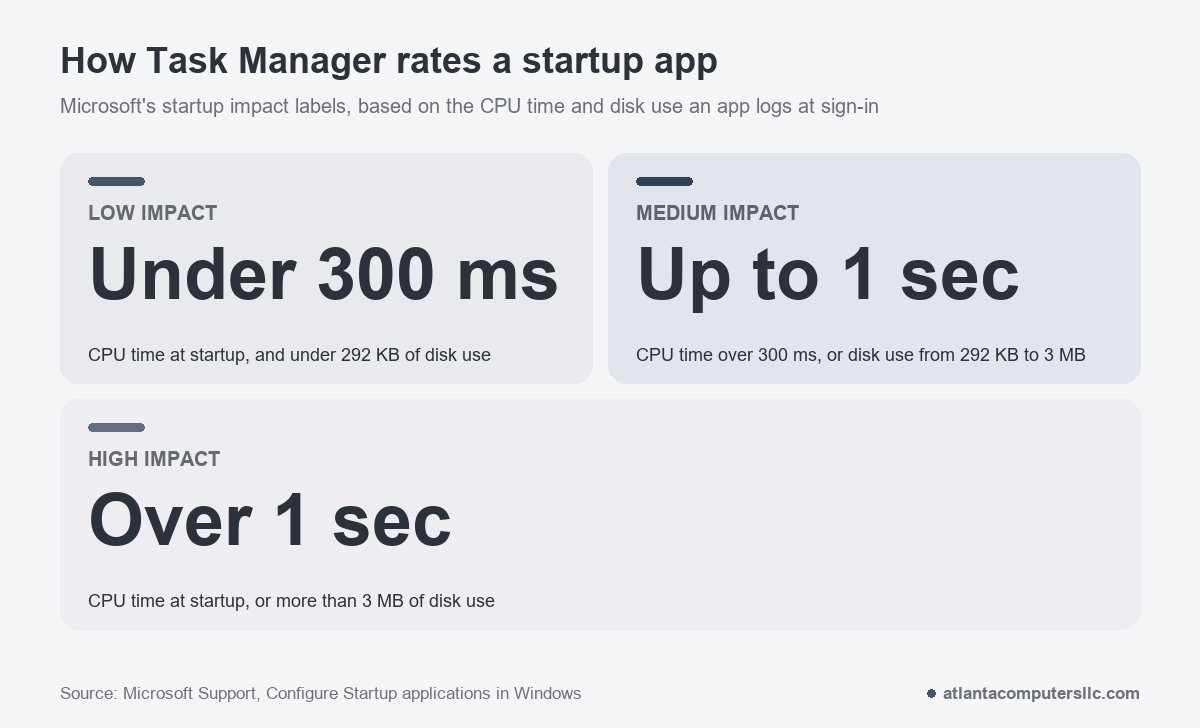
The list has a Startup impact column, and Microsoft defines its labels. Low means under 300 milliseconds of CPU time and under 292 KB of disk use. Medium means more than that but under 1 second of CPU or under 3 MB of disk. High means over 1 second of CPU or more than 3 MB of disk. I start with the High rows. HP’s tech blog makes one exception: leave your security software alone.
Free space and the cushion Dell recommends
Open Settings, System, Storage. Windows shows what is using the system drive, and Cleanup recommendations lists temporary files, unused apps and large files you can remove. Storage Sense, on the same page, clears temporary files by itself once you switch it on. Microsoft says it is off by default, covers the system drive only, and leaves Downloads and OneDrive alone unless you tell it otherwise.
How much room is enough? Windows doesn’t publish a number. Dell’s support page on system performance does: it says to leave 10 to 15 percent of a hard drive free, and it puts the cushion for an SSD at roughly 25 to 30 percent. That is Dell’s rule of thumb, not a Windows setting. By its numbers, an SSD that is three-quarters full is already at the edge. HP’s tech blog adds that a drive can slow well before it is full.
Updates and a quick scan
Go to Settings, Windows Update, Check for updates, and install what it finds. Microsoft says updates often include fixes and performance improvements, and a restart afterward finishes the job. Then open Windows Security, choose Virus & threat protection and run a Quick scan. Microsoft notes that malware can consume CPU and disk resources.
If the scan finds something, or the signs fit an infection (programs you didn’t install, a changed homepage), the cleanup is in how to remove a virus from a laptop.
Power mode and visual effects
On a laptop, check Settings, System, Power & battery, Power mode. Microsoft warns that Best performance raises power consumption, so a laptop on it drains faster and runs warmer, and it suggests the setting only when you need maximum performance. Plug in, try it once and watch Task Manager. If nothing changes, set it back.
Microsoft also lists Adjust for best performance under visual effects, reached by searching Start for “Adjust the appearance and performance of Windows”. It switches off animations instead of fixing a cause, so it’s the last free step I’d bother with.
Test the hardware before you buy anything
If the free fixes didn’t change the Task Manager picture, run the tests that tell you whether a part is failing. Back up what you can’t replace first. I back up or image the drive before any repair that touches it.
For memory, press Windows key + R, type mdsched and approve the admin prompt. Save your work and close your apps first, because choosing Restart now and check for problems restarts the computer at once. Standard tests run by default, and pressing F1 on the test screen opens the Extended option. When the tests finish, the machine returns to the sign-in screen and a Windows Memory Diagnostic notification appears. If you miss it, Event Viewer keeps the result, and Microsoft says Event ID 2001 means no memory errors were detected.
For the drive and everything else, Dell and HP build a test into the machine that runs before Windows loads. On a Dell, restart, press F12 repeatedly as it starts and choose Diagnostics. The Dell laptop blue screen page covers Dell’s options, and HP laptop blue screen does the same for HP’s Esc, then F2 menu. Lenovo has UEFI diagnostics too, with one support page for IdeaPad, Legion, Yoga and LOQ and another for ThinkPad and ThinkBook, so find yours by model on Lenovo’s support site.
Dell’s performance page also lists a disk check: open Command Prompt as administrator, run chkdsk C: /f /r, and restart so it can run.
Will an SSD or more memory help?
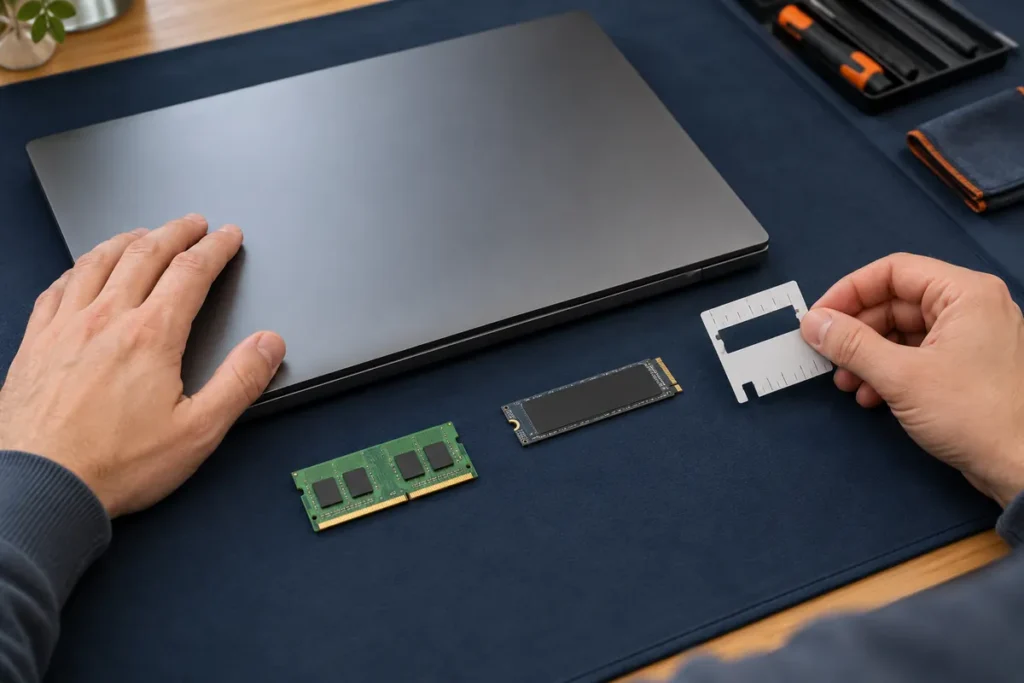
An SSD or more memory helps a computer running slow only if Task Manager shows the matching resource pinned during normal use: the disk on a machine that still has a spinning hard drive, or memory sitting near the top with just your usual apps open. An upgrade can’t fix heat, a failing drive or an old processor.
Start with which drive you have. The Performance tab lists it under Disk, and the spec sheet for your exact model on the maker’s support site names it. Dell says SSDs are faster, more reliable and use less power than hard disk drives, which is why the swap is the upgrade that targets a pinned disk. A machine that already has an SSD won’t get faster the same way.
For memory, open the Performance tab’s Memory graph after a restart, with only your usual apps running. If it sits near the top and the machine stalls, more memory is a fair bet. HP’s tech blog says 8 GB is sufficient for most users and adds that it varies with use. Microsoft’s Windows 11 minimum is 4 GB of RAM, so a machine at that number is running at the floor.
Before you buy anything, check that the machine accepts it. Dell’s memory upgrade page says the memory on certain Dell laptops cannot be upgraded because it is integrated into the system board. It also says a system board supports only one generation of memory, such as DDR4 or DDR5, and that the wrong type can damage the module or the slot. Dell sends you to the Parts and Accessories tab, found by Service Tag. Do the same lookup for any brand: exact model number, then the maker’s spec page or manual.
Shut down, unplug the charger and, where the design allows, disconnect the battery before you open anything. Read how your model opens first. Access differs by model, and some need more taking apart than you’d expect.
Where I stop and hand it off
Stop when a test fails or a part is physically failing, because more settings changes and parts bought blind won’t fix either one. These are the points where I hand the machine off.
- The drive clicks, grinds or drops out. A clicking drive goes to a data recovery lab, not to a disk check, because I don’t do clean-room recovery.
- Windows Memory Diagnostic or the maker’s test reports an error. Write down the code. A failed test is a repair decision, and new parts bought blind don’t settle it.
- The fan stays loud and the case stays hot after the vents are clear. The cooling assembly needs the case open.
- The battery is swollen. Stop using it and don’t charge it; take it to a recycler or a repair shop.
- The memory or storage is part of the board and the test says it failed. I don’t do board-level microsoldering.
- It’s a work laptop. Your IT department should hear about the slowdown before anyone changes anything.
Repair or replace the computer?
Replace a computer running slow when it can’t run a supported version of Windows, can’t take the part it needs, or has a failing drive or memory. Microsoft ended support for Windows 10 on October 14, 2025, so a PC that can’t move to Windows 11 is running an unsupported system.
Microsoft’s PC Health Check app tests whether a Windows 10 PC can upgrade to Windows 11. Its requirements page lists 4 GB of RAM and 64 GB of storage as minimums and says a PC short of either can sometimes be upgraded, which is why a memory or SSD swap comes before a new machine when the rest of the hardware passes.
If the PC fails the check, or the tests above failed, the next purchase is a new or refurbished machine. What to look for when buying a laptop covers the checks, and Are Refurbished Laptops Good? gives my verdict on refurbished units.
Four follow-ups
How do I run a PC health check?
Open Windows Security and choose Device performance & health, Microsoft’s built-in health report. It checks for low disk space, app failures or updates needed, battery strain and the system clock, and it runs a new scan every time you open it. It reports health, not speed, so use Task Manager for that. The separate PC Health Check app is for Windows 11 eligibility.
Does clearing the cache fix a computer running slow?
Only a little, and only for what the cache belongs to. Clearing browser data helps when only the browser is slow, and Temporary files under Settings, System, Storage frees disk space. Neither fixes a pinned disk or a failing drive.
Should I defragment the hard drive?
Not by hand. Microsoft’s defrag documentation says Windows runs drive optimization as a scheduled maintenance task, typically weekly, and that it handles SSDs on their own monthly schedule. The Optimize Drives app changes the schedule if you want to.
What if it’s a Mac?
Apple’s checks are the same ideas with different menus: free space, memory and the disk. Apple’s help page for a slow Mac points to System Settings, General, Storage for free space, Activity Monitor for memory use, quitting apps you aren’t using, and Disk Utility for disk problems. The Windows steps above don’t apply.
